Adding Observation Data
Observations are measured data, such as daily river flow at a gauge, that the toolbox compares with model results during sensitivity analysis and calibration. Observations belong to the project, so every scenario uses the same set.
Preparing observation data
Prepare each observation as a CSV file with one date column and one value column. Open the file in a text editor to check what it contains, since a spreadsheet program can save a "CSV" with semicolons or tabs as the separator. The toolbox accepts commas, semicolons and tabs.
- First row: the first row is a header and is not read as data. If the date column's header names the date format, for example
Date (dd/mm/yyyy)orMM/DD/YYYY, the toolbox uses it as a hint. - Date column: the toolbox detects the date format from the dates in the file. It reads year-first dates (
yyyy-mm-dd,yyyy/mm/dd), day-first and month-first dates with the year at the end (dd/mm/yyyy,mm/dd/yyyy), two-digit years, dots or spaces as separators, and leading zeros or none. For monthly data, year and month alone (yyyy-mm,mm/yyyy) also work. - Value column: a number with a dot (point) as the decimal symbol, such as
12.5. Comma decimals are not converted, so a file with values like12,5loses the part after the comma.
Tip
A date such as 03/04/2001 can be read as 3 April or 4 March. The toolbox decides from the rest of the file (a day above 12 settles it), so with a short file, or one where every day is 12 or less, use the year-first form 2001-04-03.
Daily data
Daily data should have consecutive dates in ascending order in the date column and the corresponding values in the value column.
Monthly and yearly data
Monthly data has one row per month. The day part of the date is ignored, so 1998-11-01 and 1998-11-15 both mean November 1998; keep it the same in every row. Yearly data has one row per year, and the day and month are ignored.
Missing data
Mark missing values with -99, -999 or -9999. There is no need to leave dates out of the file where data is missing. Missing values are left out of the performance statistics and show as gaps in the graph. For example:
Date,Flow
2001-01-01,12.4
2001-01-02,-99
2001-01-03,-99
2001-01-04,10.9
Units
Observed values must be in the units of the matching SWAT+ output column, for example m3/s for river flow, tons for sediment and kg for nutrient loads.
Adding to the project
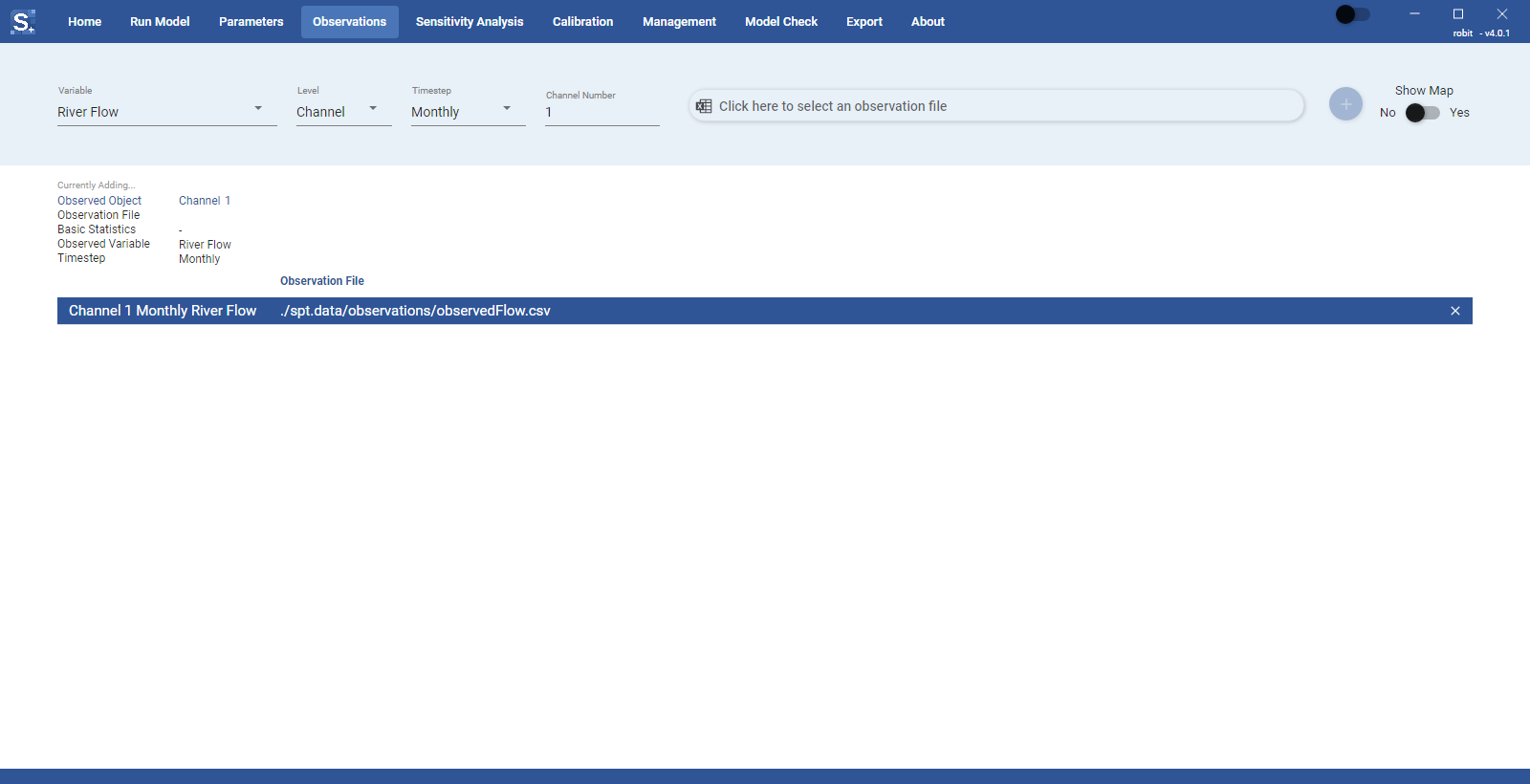
- Choose the Variable, for example River Flow. The list depends on the model: a model that uses gwflow offers per-cell groundwater variables (GW Cell Head, GW Cell Recharge and others) and no shallow aquifer variables, and a model without gwflow offers the shallow aquifer variables instead.
- Choose the Level, which is the kind of object the observation is for. Only the levels that apply to the variable are listed: Channel, HRU, LSU, Basin, Aquifer or Cell.
- Choose the Timestep: Daily, Monthly, Yearly or Average.
- Type the object number in the number box, which is labelled after the level (for example Channel Number). To find a channel number, turn on the map (see Map View) and click the river.
- Click Click here to select an observation file and select the CSV file.
- Click the round + button ("Add to observations table"). It stays greyed out until all the boxes above are filled in.
The toolbox checks the file and copies it into the project, to spt.data/observations in the project folder. If a different file with the same name is already there, the copy gets a number added to its name. The observation is named after its level, object number, timestep and variable, for example channel 12 Daily River Flow, and two observations cannot have the same name.
If the file cannot be read, for example because it has fewer than two columns or no valid rows, an "Add observation failed" message says what is wrong.
When you run the model, the toolbox sets up SWAT+ to print the output that each observation needs, so you do not need to change the print settings for observed objects.
Viewing observations
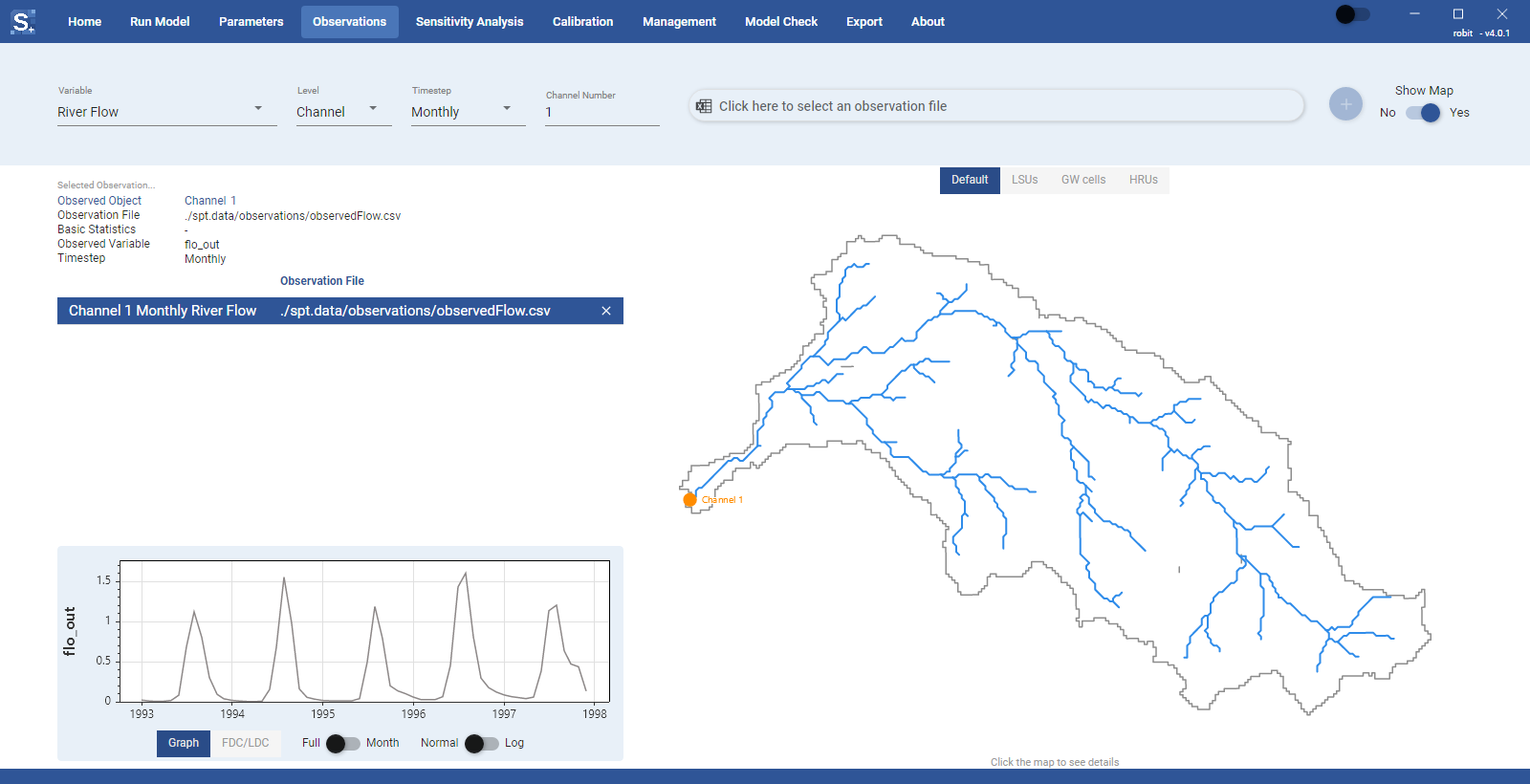
Click an observation in the table to see its details: observed object, file, variable, timestep and its basic statistics (NSE, KGE, RMSE and PBIAS) once the toolbox has calculated them from model results. A graph of the observed data opens above the table. The controls under the graph change the view:
- Graph shows the time series, and FDC/LDC shows the flow duration curve (or load duration curve, for loads), with the exceedance probability on the x-axis.
- Full and Month switch the graph between the full series and the average for each month of the year. This switch is available only for the Graph view.
- Normal and Log switch the y-axis between a linear and a log scale.
Observations with the Average timestep are shown as a bar chart.
To remove an observation, click the x at the end of its row.
While a model run, sensitivity analysis or calibration is in progress, you can view observations but cannot add or remove them.
Map view
Set Show Map to Yes to open a map of the watershed next to the table. The map needs the watershed shapefiles from QSWAT+ (gis.data/Watershed/Shapes in the project folder); a project without them has no map, and the switch turns itself off.
The strip above the map chooses the background:
- Default: streams and the basin boundary.
- LSUs: landscape units.
- Aquifers: aquifers, or GW cells in a project that uses gwflow.
- HRUs: HRUs, shown when the HRU shapefile is small enough to draw (see Map Selection).
Channels with observations are marked on the map, and on the other layers the objects that have observations are highlighted. Click the map to see the channel, LSU, HRU, aquifer or cell number under the pointer. When you select a channel observation in the table, its marker is highlighted.