Manual Calibration
Manual calibration is an iterative process, and it gets easier with experience. In each round you run the model, extract and evaluate the results by plotting them and calculating indices, then change parameters, and repeat until the results are satisfactory.
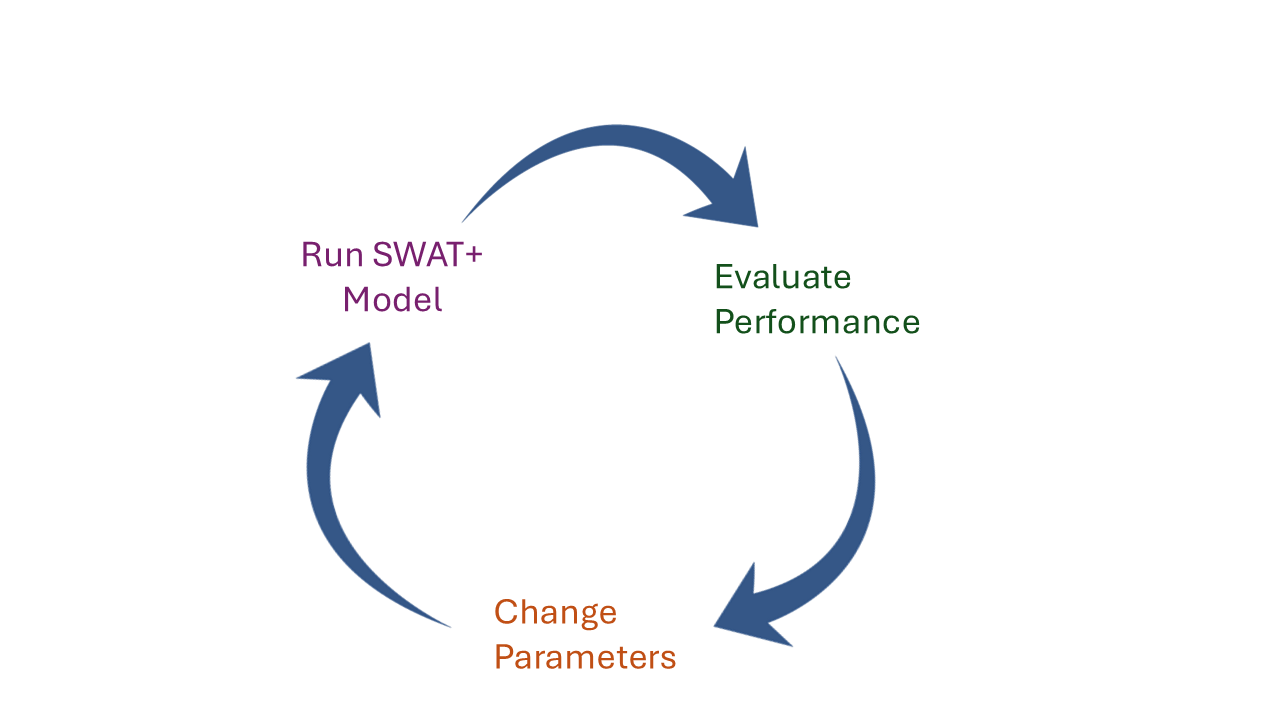
SWAT+ Toolbox does the running, extraction, plotting and scoring for you. Open Calibration and choose Manual in the strip at the bottom of the page. The page uses the parameters from the Parameters page and the observations from the Observations page.
Parameter values
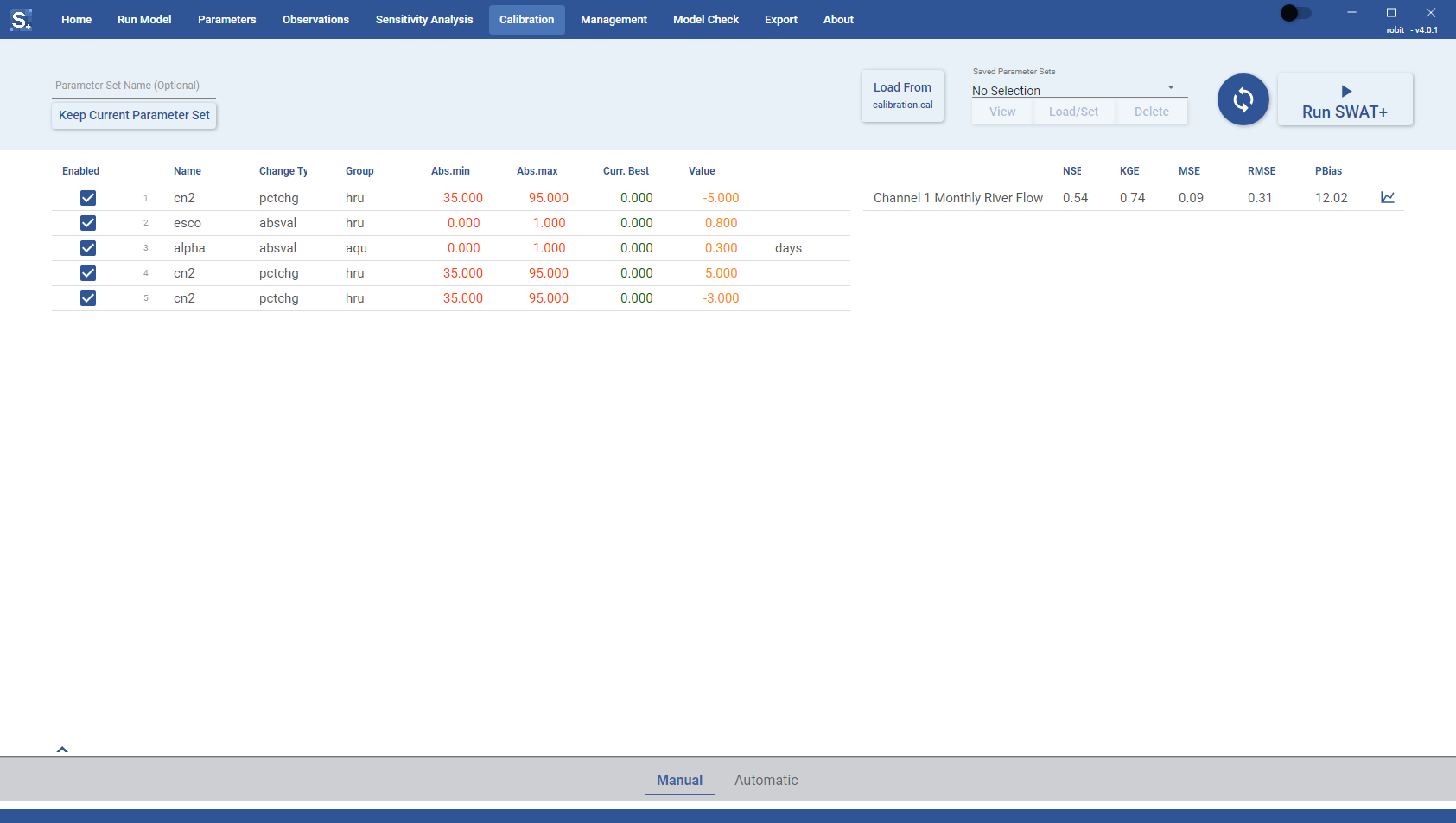
The parameter table on the left lists each parameter with its ID, Name, Change Type, Group, absolute limits (Abs.min and Abs.max), the best value from the last automatic calibration (Curr. Best), the Value to use, and its units.
- Click the Value cell of a parameter to type a new value. Leave the cell empty to set no value; the parameter is then left out of
calibration.caland SWAT+ keeps the value already in the model. - Untick Enabled to leave a parameter out. Ticking and unticking a parameter lets you compare the results with and without it.
Values and the Enabled ticks are saved as you change them. They cannot be changed while a model run or calibration is in progress.
Saving and loading parameters
To save the current parameters, type a name in Parameter Set Name (Optional) and click Keep Current Parameter Set. If you leave the name empty, the set is named after the current date and time, for example "Set 2026-10-19 14:30".
To use a saved set, choose it in Saved Parameter Sets, then click View to see its parameters in a preview window, Load/Set to load it into the current scenario, or Delete to remove it.
To load parameters from a file, click Load From calibration.cal and pick a SWAT+ calibration.cal file. Loading replaces all parameters currently in the scenario, including calibrated values, so the Toolbox asks you to confirm first. Save a parameter set before loading if you want to keep the current one. When the import finishes, a summary lists any parameter names that were not found in the parameter definitions. Conditional parameters in the file are skipped, since they are not supported yet.
Model run
Click Run SWAT+ to write the parameter values and run the model. Progress is shown in the global progress bar at the bottom of the window. The button changes to Stop SWAT+ while the model runs; click it to cancel the run. Run SWAT+ is not available while an automatic calibration is running.
Model performance
When a run finishes, the performance table on the right is refreshed automatically. To refresh it yourself, for example after running the model from another page, click the round refresh button next to Run SWAT+. The table has one row per observation, with NSE, KGE, MSE, RMSE, PBias and MARE. On a narrow window some metric columns are hidden to make room.
Click the chart button at the end of an observation row, or select the row, to open the graph panel for that observation. Use the arrow at the left of the panel to show or hide it.
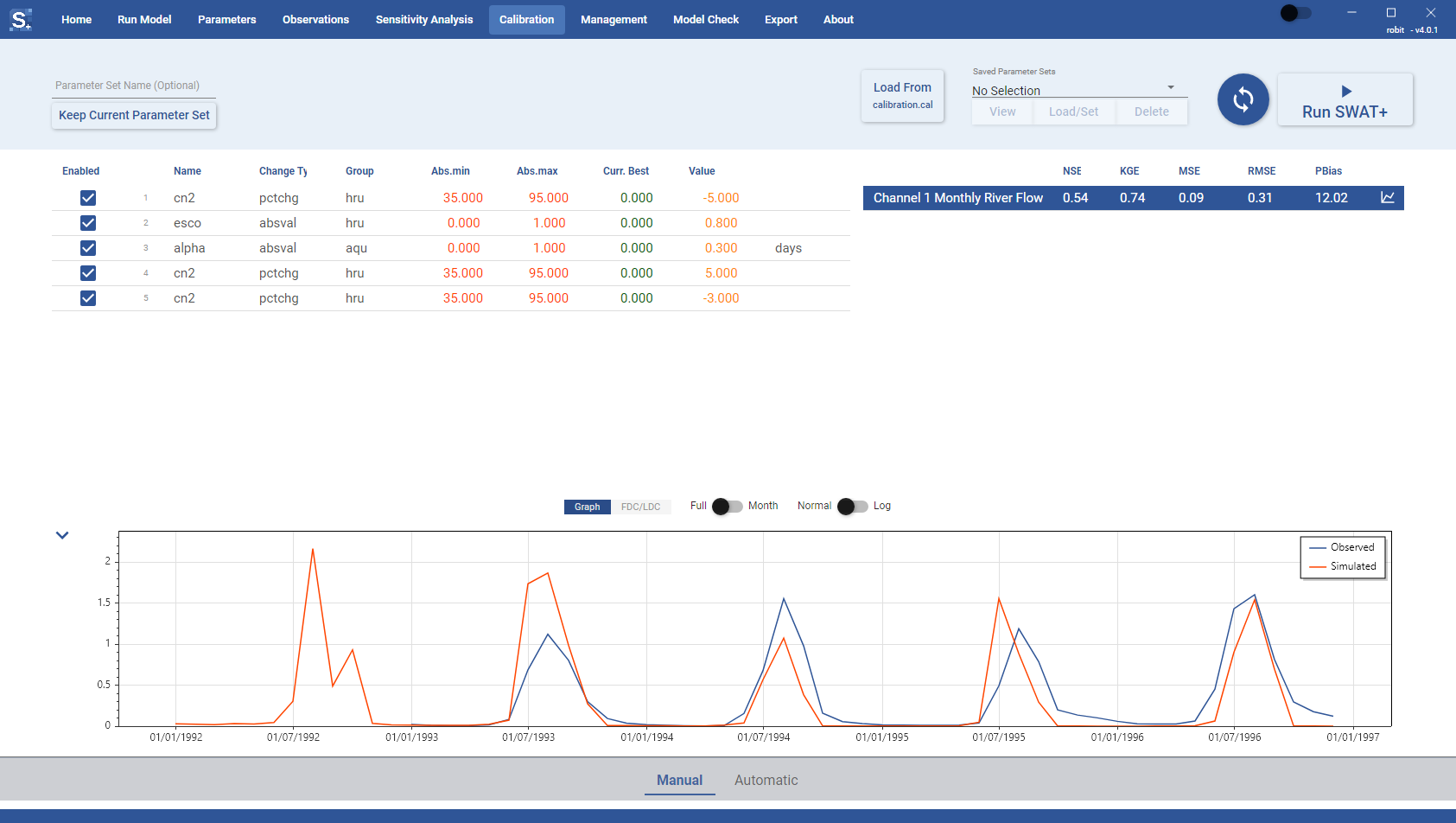
The graph panel has these controls:
- Graph and FDC/LDC switch between the observed and simulated time series and the flow or load duration curve.
- Full and Month switch the graph between the full series and monthly averages.
- Normal and Log switch the y axis between a normal and a log scale.
For an observation with the Average timestep, the panel shows a bar chart of the observed and simulated averages.
To save the chart as an image, see Saving graphs.
When the results are satisfactory, run a model check to look for problems in the model.