Run Settings
Overview
The Run Model section sets the simulation period, warm-up, sub-daily output, routing and PET methods, print settings and further model options. It is also where you manage scenarios, choose the SWAT+ revision, and run SWAT+ and follow its progress (see Running SWAT+).
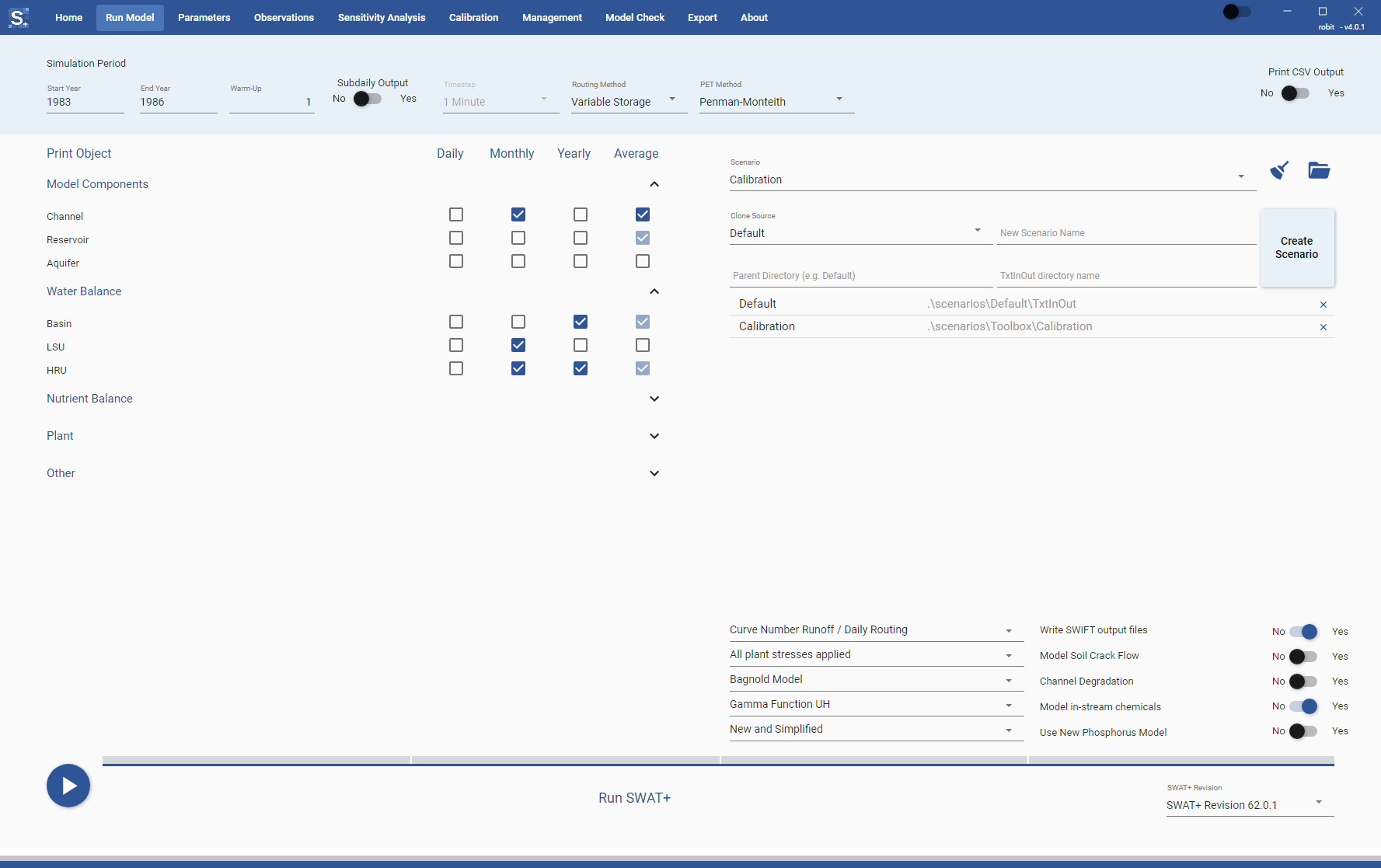
Every change is saved to the active scenario as soon as you make it. There is no save button. Text boxes save when you leave them. The settings are written to the scenario's input files (time.sim, print.prt, codes.bsn) when you run the model, and also when sensitivity analysis or calibration runs.
While a model run, sensitivity analysis or calibration is in progress, the settings in this section are greyed out.
Simulation period
When you open a project, the Start Year, End Year and Warm-Up boxes show the values stored for the active scenario. Type a new start or end year to change the period. The toolbox works in whole years: a run starts on 1 January of the start year and ends on 31 December of the end year.
Warm-Up is the number of years at the start of the period whose results are not printed. These years let the model's stores settle before results are compared with observations. The default is 2.
Sub-daily output
Set Subdaily Output to Yes to run the model at a sub-daily step, then choose the step in Timestep, from 1 minute to 12 hours (the default is 1 hour). With Subdaily Output set to No, the model runs at a daily step and Timestep is greyed out.
Routing and PET methods
Routing Method offers Variable Storage and Muskingum.
PET Method offers Priestly and Taylor, Penman-Monteith and Hargreaves, and Read PET From File to use PET values from an input file.
Print settings
The print table sets which outputs SWAT+ writes, for each object and timestep (Daily, Monthly, Yearly and Average). Check a box to turn an output on. The rows are grouped under headings that you can expand or collapse:
- Model Components: Channel, Reservoir and Aquifer.
- Water Balance: Basin, LSU and HRU.
- Nutrient Balance: Basin, LSU and HRU.
- Plant: Basin, LSU and HRU.
- Other: every other print object that SWAT+ offers, listed by its
print.prtname.
Some boxes cannot be changed. A box that is checked and greyed out is an output SWAT+ always writes; its tooltip reads "Required output (mandated) - always written". A faded, empty box is a timestep SWAT+ does not produce for that object.
The Channel row turns on both the channel and the channel_sd outputs. The toolbox reads river flow and sediment from channel_sd, so keep Channel on for the timestep of any river observation.
Set Print CSV Output to Yes to have SWAT+ also write its output as CSV files, which open in a spreadsheet.
Model options
Below the scenarios list is a group of options that SWAT+ reads from codes.bsn: five drop-down lists on the left and five No/Yes switches on the right. The drop-down lists have no labels, so hover over each one to see what it sets.
| Option | Choices (default first) |
|---|---|
| Runoff and routing | Curve Number Runoff / Daily Routing; Green and Ampt Infiltration / Sub-Daily Routing (needs sub-daily rainfall) |
| Plant stress | All plant stresses applied; No plant stress; Turn off nutrient plant stress only |
| Channel sediment transport | Bagnold Model; Brownlie Model; Yang Model |
| Unit hydrograph | Triangular UH; Gamma Function UH |
| In-stream nutrient method | Original Using QUAL-2E; New and Simplified |
| Write SWIFT output files | No; Yes |
| Model Soil Crack Flow | No; Yes |
| Channel Degradation | No; Yes |
| Model in-stream chemicals | Yes; No |
| Use New Phosphorus Model | No; Yes |
The defaults in the table are what the section shows before a project is loaded. Once a project is open, it shows the values stored for the active scenario.
Scenarios
Run settings, print settings and parameters belong to a scenario. Everything you set in the Run Model, Parameters, Sensitivity Analysis, Calibration and Management sections applies to the scenario selected in Scenario. Observations are the exception: they belong to the project.
A new project has two scenarios:
- Default is the model as it was imported. Do not make changes to it; keep it as the reference copy.
- Calibration is a copy of the Default model, in
scenarios/Toolbox/Calibration. It is the active scenario when the project is created, and it is the one to use for sensitivity analysis, calibration and changes to management.
To switch scenarios, pick one in Scenario. The section reloads the settings stored for that scenario.
The two buttons next to Scenario act on the active scenario's TxtInOut folder:
- The broom button deletes every
.txtfile in the folder, which removes the output of earlier runs. Its tooltip reads "Clean output files: all txt files will be removed". - The folder button opens the folder in your file manager (File Explorer on Windows, Finder on macOS, and the default file manager on Linux).
Creating a scenario
- In Clone Source, choose the scenario to copy.
- Type a name in New Scenario Name. The name cannot be "Default" or a name already in use.
- Optionally, type a Parent Directory and a TxtInOut directory name. The new folder is created as
scenarios/<Parent Directory>/<TxtInOut directory name>inside the project folder. If you leave them empty, the parent directory is the scenario name and the TxtInOut directory isTxtInOut. The folder must not already exist with files in it. - Click Create Scenario and wait for the new scenario to appear in the list. The text under the progress bar reports the result, or why the scenario could not be created.
The new scenario gets a copy of the source scenario's input files and all of its settings, parameters and calibration setup. Output files (.txt) are not copied. Each scenario is a full copy of the model inputs, so every new scenario adds to the disk space the project uses.
Deleting a scenario
The list under the scenario controls shows each scenario and its folder. Click the x at the end of a row to delete that scenario. The toolbox asks whether to delete the scenario's folder from disk as well:
- Delete folder removes the scenario from the project and deletes its folder.
- Keep folder removes the scenario from the project and leaves the folder on disk.
Either way, the scenario's parameters, run settings and calibration results are removed from the project. You cannot delete the Default scenario or the active scenario.
SWAT+ Revision
SWAT+ Revision, at the bottom right of the section, selects the SWAT+ executable. The revision you pick here is used for every run in the session: runs from this section, manual calibration, sensitivity analysis and automatic calibration. It cannot be changed while a run is in progress.
The toolbox ships one executable per revision for each platform it runs on, and the list only shows revisions that have an executable for your computer:
| Revision | Windows (x64) | Linux (x64) | Linux (ARM64) | macOS (Apple Silicon) |
|---|---|---|---|---|
| SWAT+ Revision 62.0.1 | Yes | Yes | Yes | Yes |
| SWAT+ Revision 62.0.0 | Yes | Yes | Yes | Yes |
On Windows on ARM, the toolbox uses the x64 executable.
When a project opens, the first revision in the list (62.0.1) is selected. If the project file names a revision and that revision is available, it is selected instead. The choice you make in the list is not saved in the project.
Custom executables
The list comes from exes.csv in the assets/executables folder of the installation. Each row has a revision name followed by one executable file name per platform (win-amd64, win-arm64, osx-arm64, linux-amd64, linux-arm64); an empty cell means there is no executable for that platform. To add your own SWAT+ build, copy the executable into the same folder and add a row with its file name in your platform's column. Restart the toolbox to see it in the list.
%USERPROFILE%\SWATPlus\SWATPlusToolbox\current\assets\executables\exes.csv
~/.local/share/SWATPlus/SWATPlusToolbox/assets/executables/exes.csv
The executable must be marked as executable (chmod +x).
~/Applications/SWAT+ Toolbox.app/Contents/MacOS/assets/executables/exes.csv
Changing files inside the app bundle breaks its code signature. Re-sign it with codesign --force --deep -s - "$HOME/Applications/SWAT+ Toolbox.app" if macOS refuses to open the app afterwards.
Warning
When a new release changes exes.csv, for example to add a SWAT+ revision, updating the toolbox replaces the file and your rows are lost. Keep a copy of your rows and add them back after an update. On Linux and macOS, executables you added yourself are left in place by updates. On Windows, an update replaces the whole program folder, so executables you added can be lost as well. Keep copies of them outside the installation folder and copy them back after an update.