Model Checks
The Model Check section helps you judge how your model behaves and find likely problems. Each check shows the main fluxes from the last model run, with messages and warnings. The warnings are not errors; they point to areas that may need attention.
The page has five tabs, chosen in the strip at the bottom: Hydrology, Nutrients, Sediments, Plants and Reservoirs. Hydrology opens first.
Check data
When you open a project, the page shows the check data saved from the last refresh. After you run the model, click the refresh button at the top of the page to read the new SWAT+ output and recompute the checks. The button is not available while a model run from the Run Model section or the Manual tab of Calibration is writing output, or while an automatic calibration runs its final simulation with the best parameters. The other automatic calibration runs and sensitivity analysis runs use separate folders, so you can refresh during those.
The checks read the average annual output files for the basin and the HRUs, so turn these on in Run Settings before you run the model. The Sediments, Plants and Reservoirs tabs can also show time series for a single HRU or reservoir; these need daily or monthly output for that object.
In Print Object, tick Average for Basin and HRU under Water Balance, Nutrient Balance and Plant, for the matching losses entries under Other, and for Channel under Model Components.
Land use filter
The Hydrology, Nutrients and Plants tabs can show the values for one land use instead of the whole watershed. Turn on Check by Landuse, then choose a land use in Select Landuse. Where the land use has several kinds, for example several crops under one category, choose one in the second list, or choose Average for the area-weighted average of all of them. Choose Overall to go back to the whole watershed. Messages and warnings are shown only for Overall.
Hydrology
The Hydrology tab shows the water balance on a diagram of the water cycle, with a panel of ratios and warnings.
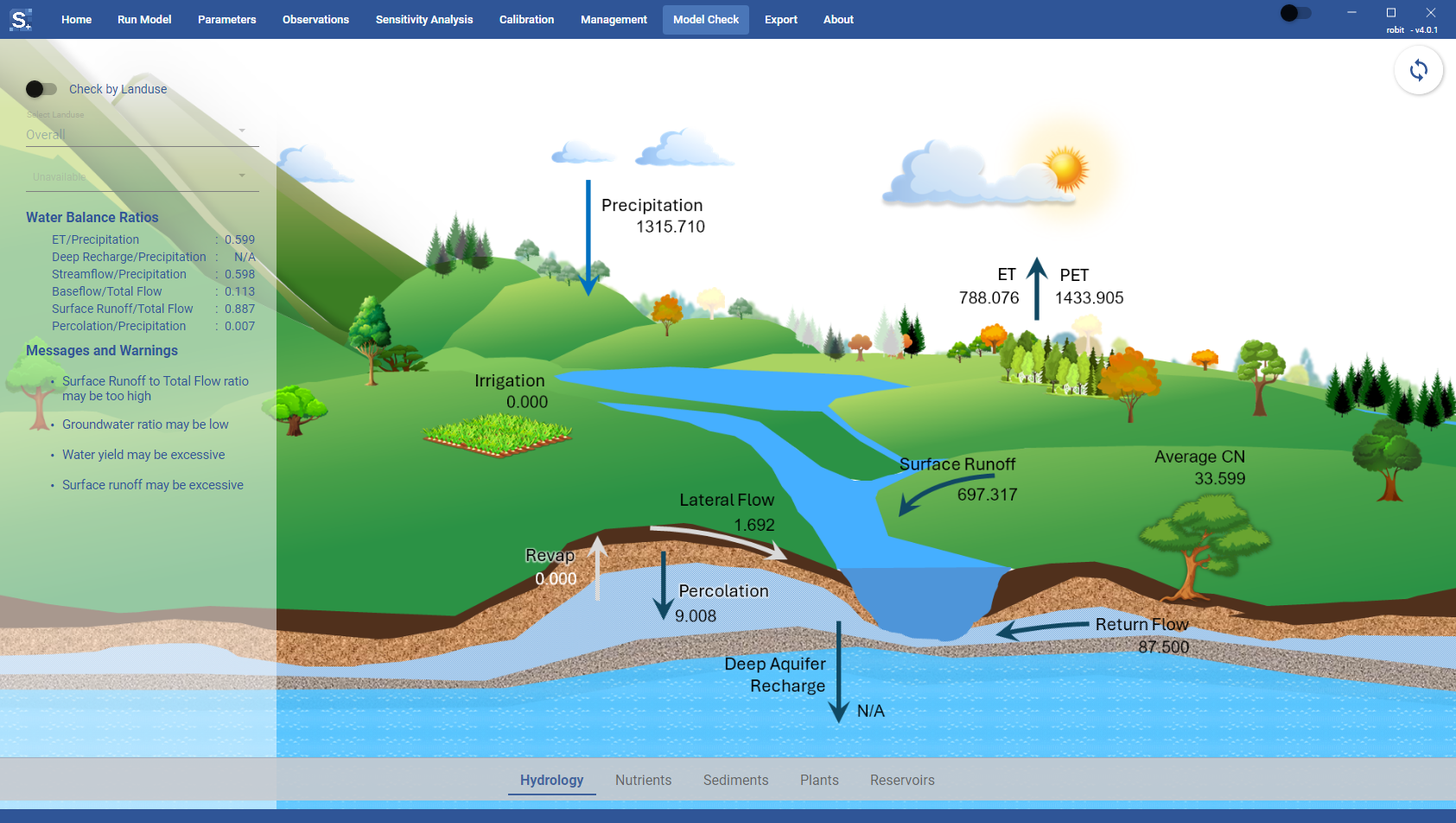
Water balance components
The diagram shows values for:
- Precipitation, ET and PET
- Surface runoff and lateral flow
- Irrigation
- Percolation
- Revap, return flow from the aquifer to the channels, and deep aquifer recharge
- Average CN
In the per-land-use view, the aquifer values are not shown.
Water balance ratios
The panel shows:
- ET/Precipitation
- Deep Recharge/Precipitation
- Streamflow/Precipitation
- Baseflow/Total Flow
- Surface Runoff/Total Flow
- Percolation/Precipitation
Messages and warnings
Examples of hydrology warnings:
- Precipitation may be too low, or seems too high
- Surface Runoff to Total Flow ratio may be too high, or appears too low
- Groundwater ratio may be high, or may be low
- Lateral flow is greater than groundwater flow
- ET Greater than precipitation
- Water yield may be excessive, or may be too low
- Surface runoff may be excessive, or may be too low
Nutrients
The Nutrients tab shows the nitrogen or phosphorus cycle on a diagram, with the landscape losses and warnings. All diagram values are in kg/ha.
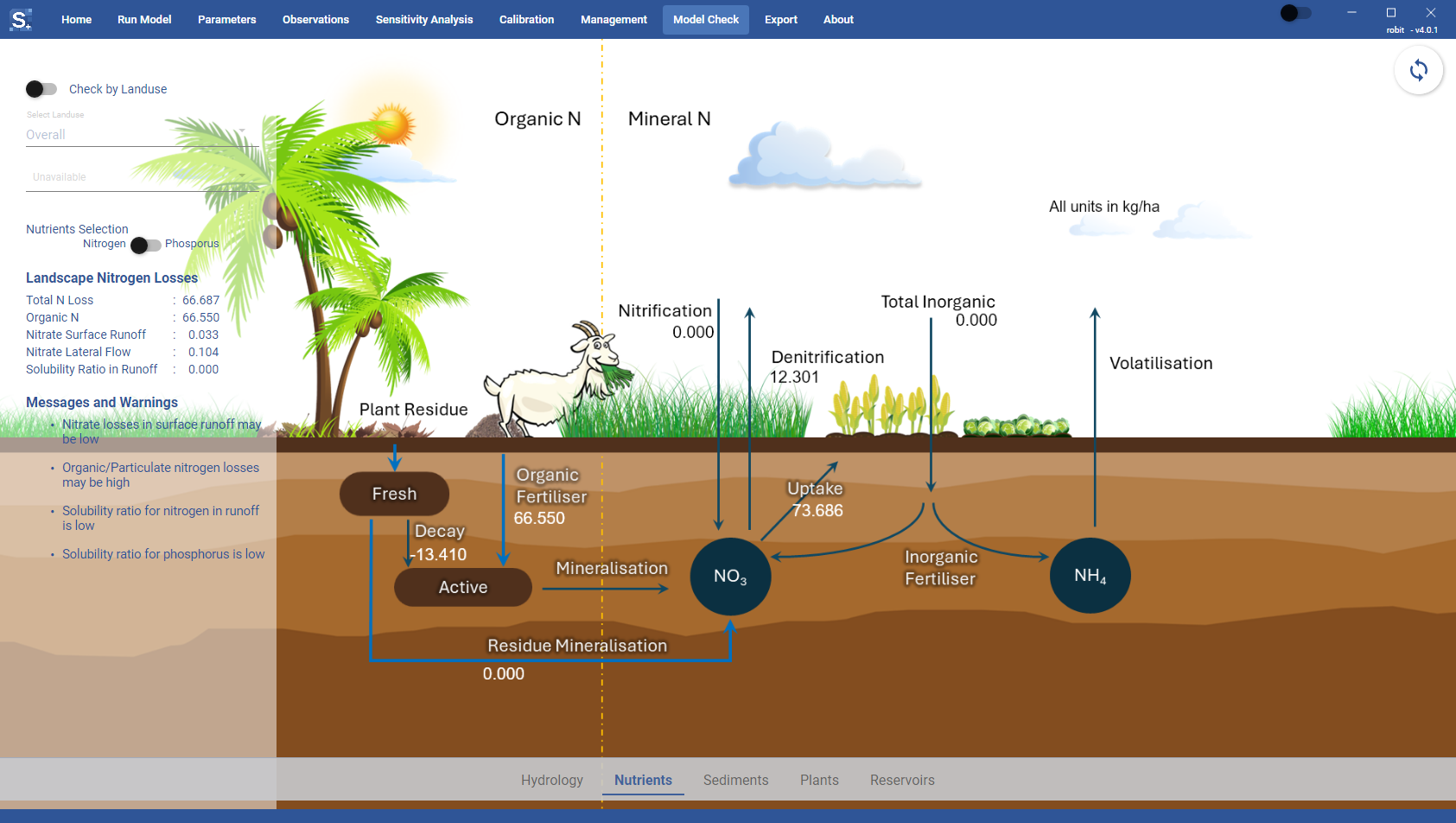
Nutrients selection
Use the Nutrients Selection switch to change between Nitrogen and Phosphorus.
Nutrient cycle diagram
For nitrogen, the diagram shows nitrogen from residue, organic nitrogen lost with sediment, plant uptake, the transfer between the active and stable pools, denitrification, fertilizer and fixation.
For phosphorus, it shows phosphorus from residue, organic phosphorus lost with sediment, plant uptake, the transfer between the active and stable pools, and fertilizer.
Landscape losses
For nitrogen, the panel shows Total N Loss, Organic N, Nitrate Surface Runoff, Nitrate Lateral Flow and Solubility Ratio in Runoff.
For phosphorus, it shows Total P Loss, Organic P, Soluble P Surface Runoff and Solubility Ratio in Runoff.
Messages and warnings
Examples of nutrient warnings:
- Denitrification is zero, consider decreasing SDNCO
- Denitrification is less than 2%, or greater than 25%, of applied fertilizer
- Crop is consuming less than half the amount of applied nitrogen
- Total nitrogen losses are greater than 40% of applied N
- Nitrate losses in surface runoff may be high, or may be low
- Organic/Particulate nitrogen losses may be high, or may be low
- Solubility ratio for nitrogen in runoff is high, or is low
- Nitrate leaching is greater than 50 kg/ha
- Soluble phosphorus losses may be high, or may be low
- Organic/Particulate phosphorus losses may be high, or may be low
- Solubility ratio for phosphorus is high, or is low
Sediments
The Sediments tab has two views, chosen with the Instream and Upland switch.
Instream view
The Instream view shows the sediment budget for the whole watershed on a diagram: surface runoff, upland sediment yield and the instream sediment change. The Sediment Budget panel lists:
- Upland Sediment Yield, in t/ha
- Instream Sediment Change
- Channel Erosion, in percent
- Channel Deposition, in percent
Examples of sediment warnings:
- More than 50% of sediment is from instream processes
- More than 95% of sediment is deposited instream
- No in-stream sediment modification; this is unusual
- Very little in-stream sediment modification (< +/- 2%)
Note
The Instream view shows a Check by Landuse switch, but in 4.0.1 it has no effect: instream sediment is checked for the whole basin.
Upland view
The Upland view summarises the sediment and nutrient losses from the HRUs. Use the By land use and By soil switch to group the HRUs. Two bar charts show, for each group:
- sediment yield (t/ha) and USLE erosion (tons)
- nutrient losses in kg/ha: organic N, organic P, mineral P and soluble P
The largest groups are shown separately and the rest are combined as "Other".
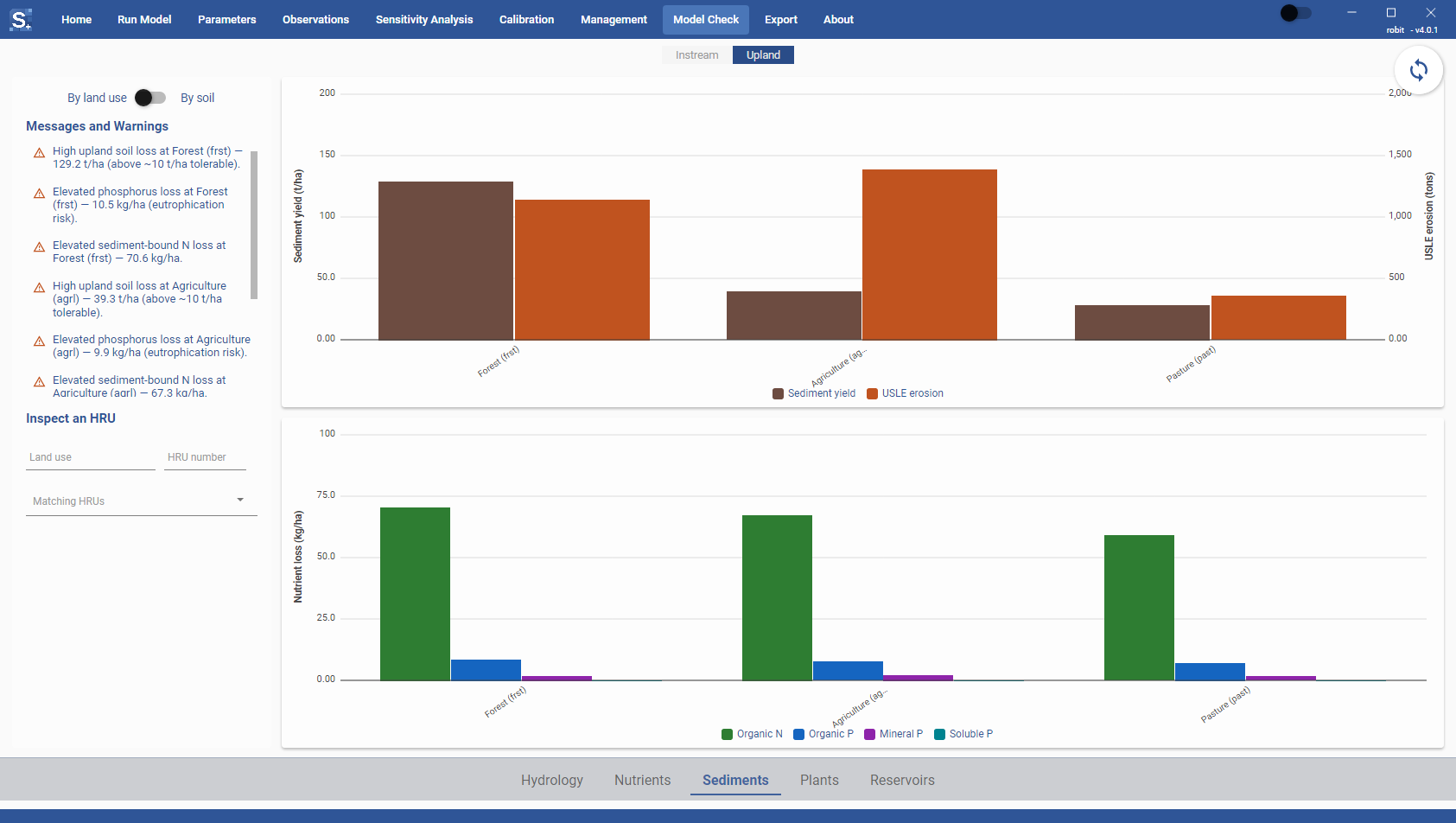
Messages and Warnings lists land uses with:
- upland soil loss above about 10 t/ha
- total phosphorus loss (organic, mineral and soluble) above 2 kg/ha
- sediment-bound nitrogen loss above 15 kg/ha
At most ten warnings are listed, followed by a count of the rest.
If land use changed during the run and the HRU landscape (hru_ls) output was not printed yearly, a note at the top of the list says the land use values mix the land uses of the HRUs that changed. Print hru_ls yearly in Run Settings and run the model again to split them by year.
HRU inspection
Under Inspect an HRU, type part of a land use name in Land use or part of an HRU number in HRU number, then choose an HRU in Matching HRUs. If an HRU's land use changed during the run, the list shows each land use and the year it started. The page then shows a time series for that HRU. Tick the series you want: sediment yield and USLE erosion are shown first, and organic N, organic P, mineral P and soluble P can be added. Click Summary to go back to the bar charts.
The time series uses monthly HRU output by default. Turn on Daily to use daily output instead; daily files are large and slower to load. If the output is missing, the page says which output to turn on in Run Settings.
Plants
The Plants tab shows plant growth, stress and management.
Stress days
The Stress Days panel shows:
- Temperature Stress Days
- Water Stress Days
- Nitrogen Stress Days
- Phosphorus Stress Days
- Soil Air Stress Days
- Salinity Stress Days
Yield and biomass
The summary table shows:
- Average Yield & Biomass: yield (kg/ha) and biomass (kg/ha)
- Nitrogen & Phosphorus (kg/ha): Total Fertilizer, Plant Uptake and Removed in Yield, each for N and P
Messages and warnings
Examples of plant warnings:
- More than 60 days of phosphorus stress, or of nitrogen stress, or of salinity stress
- More than 80 days of water stress
- Unusually low phosphorus stress
- Unusually low nitrogen stress
- Yield may be low if there is harvested crop
- Biomass averages less than 1 metric ton per hectare
HRU management preview
Under Preview HRU Management, filter the HRUs by Land use or HRU number and choose one in Matching HRUs. If an HRU's land use changed during the run, the list shows each land use and the year it started.
Management Events then lists the HRU's management operations by date. Planting, transplanting, harvest and kill show details such as the soil water and soil nutrients at sowing, the biomass at harvest, and the yield. The other operations are listed too: fertiliser with the amount in kg/ha, the start and stop of paddy irrigation with the target ponding depth, paddy irrigation with the amount applied, weir height, puddling, and any other operation SWAT+ records. The events are read from mgt_out.txt, so the management output must be on in Run Settings.
A time series chart shows the HRU's biomass and LAI, and you can add soil moisture, N uptake and P uptake. It uses the monthly HRU plant output (hru_pw_mon.txt) if that file exists, then the daily file, then the yearly one; turn on Daily to use daily output. SWAT+ does not delete output files from earlier runs, so TxtInOut can contain a plant output file from an older run next to the files from your last run. The chart uses only files written within a minute of the newest hru_pw file and skips older ones. Click Reset to clear the selected HRU and collapse the detail panels.
The management operations are marked on the chart at their dates. Planting, harvest and kill have large markers with the crop name above them; harvest and kill are placed at the biomass just before the operation. The markers follow the biomass line, or the LAI line when biomass is turned off. Point at a marker to see the operation, the crop, the date and its main value. Markers on the same day are stacked.
To zoom the time axis, scroll the mouse wheel over the chart; the date under the pointer stays in place. Hold Shift while scrolling to move along the time axis instead. Double-click the chart to reset the zoom. The other operations, such as fertiliser and irrigation, appear as smaller markers with an icon once you zoom in far enough to tell days apart, and the axis then labels months instead of years. Until then, a note at the top left of the chart says how many operations are hidden ("Scroll to zoom in for N more operations").
Reservoirs
The Reservoirs tab summarises all reservoirs in the model and shows the time series of a single reservoir. If the model has no reservoirs, the tab says so.
The panel on the left shows:
- Average Trapping Efficiency (%) for sediment, nitrogen and phosphorus
- Average Water Loss (%): total removed, evaporation and seepage
- Average Reservoir Trends: the number of reservoirs, the maximum and minimum volume ratio, and the fraction of time empty
The volume ratios and the fraction empty need yearly reservoir output; without it they read NA. Warnings lists reservoir warnings, or "No reservoir warnings." when there are none.
To see one reservoir, choose it in Reservoir selection:. The chart shows its storage, inflow and release over time, with the principal and emergency volumes as reference levels. You can add evaporation, seepage, sediment, NO3-N and soluble P. Turn on Daily to use daily output instead of monthly. If the output is missing, the page says which output to turn on in Run Settings.