Sensitivity Analysis
Sensitivity analysis shows which parameters change the model output the most. The page uses the parameters you set up in the Parameters section, with the ranges given there. Every enabled parameter is sampled, including parameters with Hold ticked on the Automatic Calibration page. You need at least two parameters.
Sensitivity settings
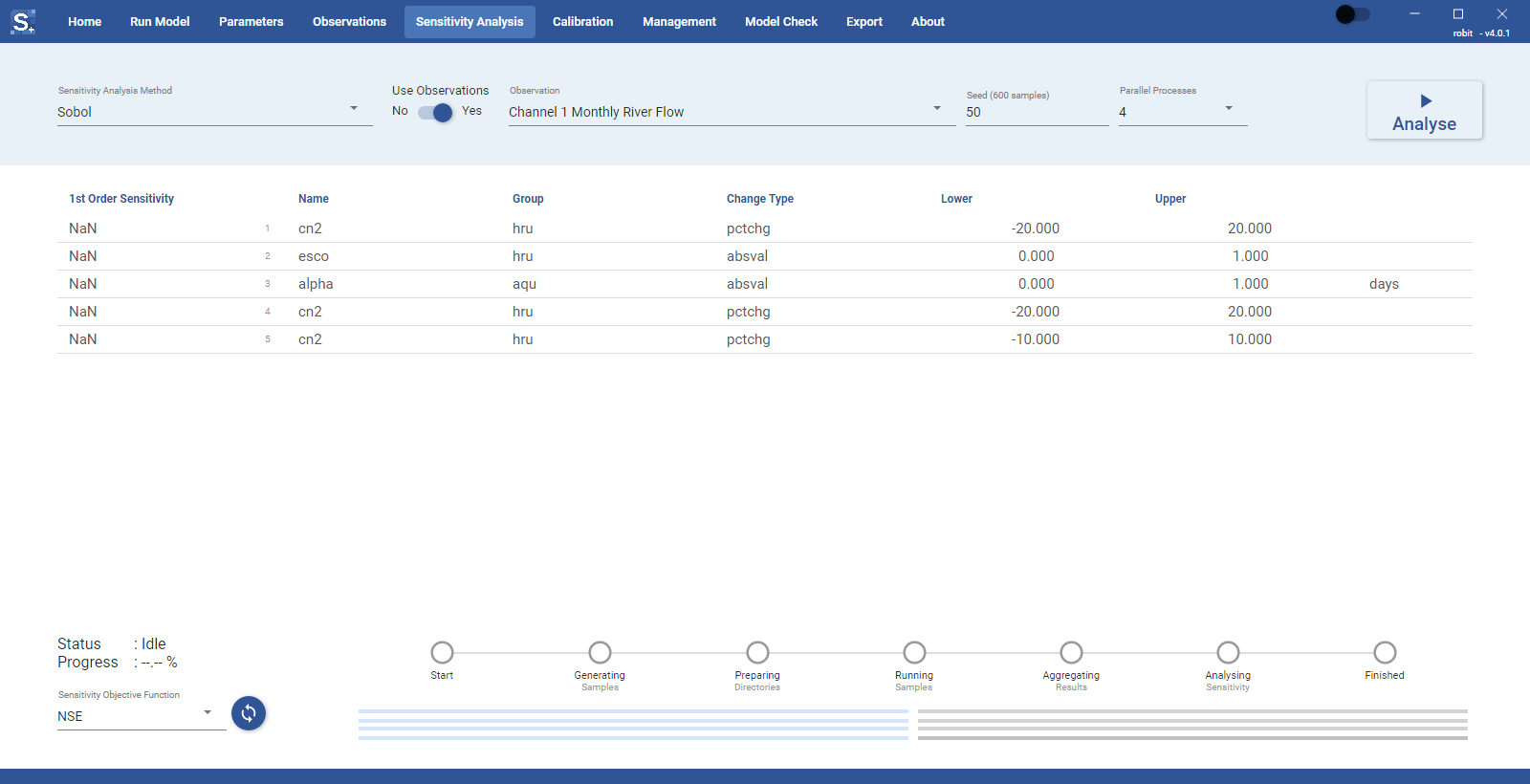
The settings are in the row at the top of the page. Each change is saved to the project as you make it.
Sensitivity methods
Choose a method from Sensitivity Analysis Method. Five methods are available:
- Latin Hypercube-One Factor at a Time
- Sobol
- Fourier Amplitude
- Random Balance Designs Fourier Amplitude
- Delta Moment-Independent Measure
The methods run in sensitivityAPI, which is bundled with the Toolbox. For more information about how each method works, read the linked publications.
Sobol
Fourier Amplitude Sensitivity Test (FAST)
Random Balance Designs FAST
Delta Moment-Independent Measure
Latin Hypercube-One Factor at a Time
Target output
The Use Observations switch decides what each sample is compared with.
- Yes: choose an observation from Observation. Each sample is scored against the observed data. Observations are added on the Observations page.
- No: choose the output to test with Variable, Level, Timestep (Daily, Monthly, Yearly or Average) and Object Number. The Toolbox first runs the model once with the current parameter values as a reference, then scores each sample against that reference run.
You do not need to turn on the output in the print settings first. The Toolbox enables the output it needs for the selected observation or variable before the runs start.
Seed and sample size
Seed sets how many parameter samples are generated. Once you type a seed, the label shows the resulting number of samples, for example "Seed (360 samples)" for a seed of 30 with five parameters and the Sobol method, and the tooltip gives the seed, the total samples and the number of parameters. The number of samples depends on the method and on the number of parameters (P):
| Method | Samples |
|---|---|
| Latin Hypercube-One Factor at a Time | seed × (P + 1) |
| Sobol | seed × (2P + 2) |
| Fourier Amplitude | seed × P |
| Random Balance Designs Fourier Amplitude | seed |
| Delta Moment-Independent Measure | seed |
For Latin Hypercube-One Factor at a Time, use at least 500 samples. Use about a thousand or more for the other methods.
Parallel processes
Parallel Processes sets how many model runs go at once. More processes shorten the run, but need more processor cores and memory. One progress bar per process is shown at the bottom of the page.
Parameter ranges
The table lists each parameter with its ID, Name, Group, Change Type, Lower and Upper bounds and units. You can edit Lower and Upper in the table. The change is saved to the parameter and the sample count is updated.
Running the analysis
Click Analyse to start. The button changes to Stop while the analysis runs. The run does not start, and the status line says why, in these cases:
- fewer than two parameters ("Need 2+ parameters")
- no observation selected when Use Observations is on
- no variable selected when Use Observations is off
- no SWAT+ executable for your platform
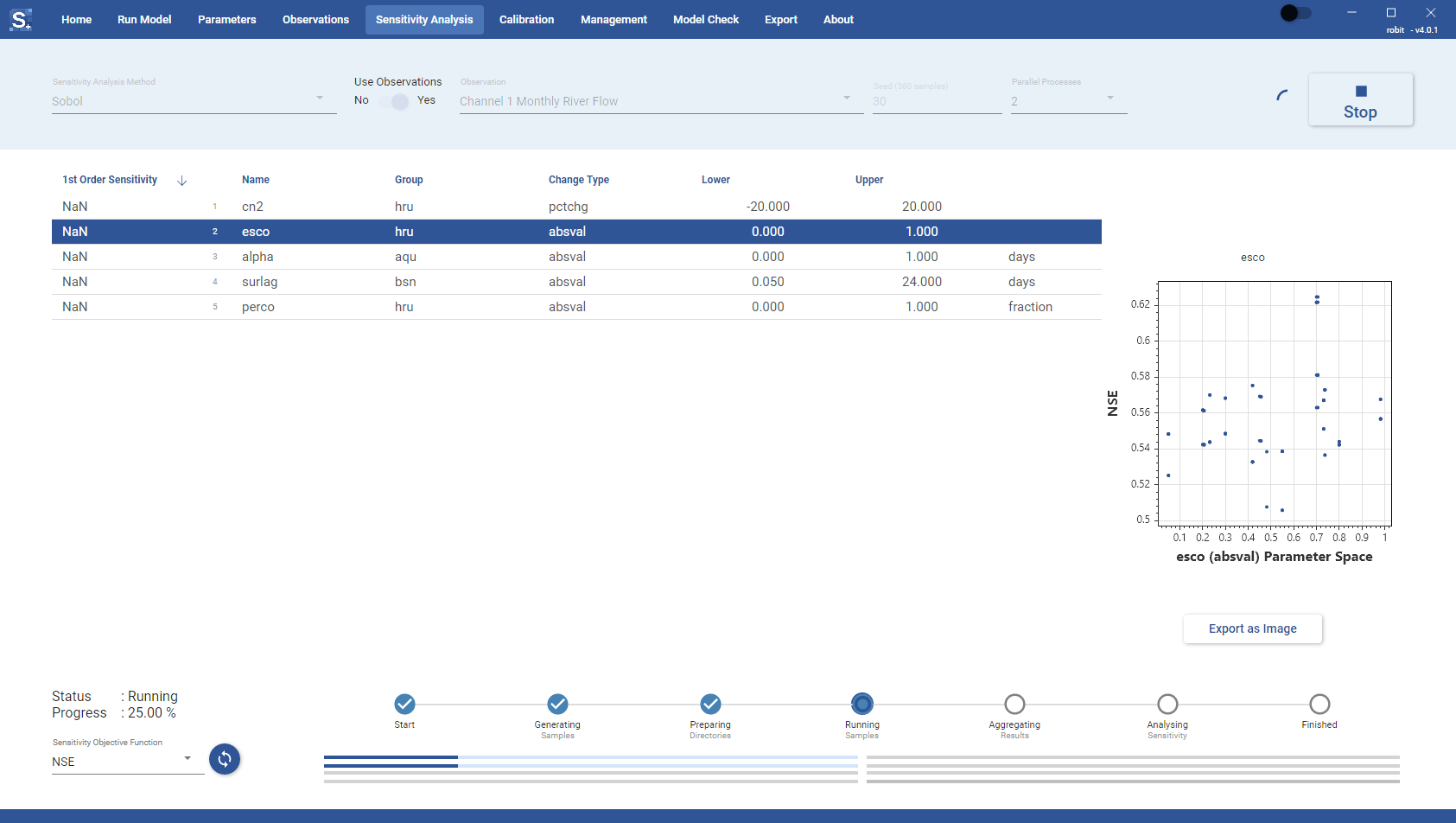
While the analysis runs you can follow it in three places:
- Status and Progress at the bottom left give the current state and the percent complete.
- The step bar shows the stage: Start, Generating Samples, Preparing Directories, Running Samples, Aggregating Results, Analysing Sensitivity and Finished.
- The progress bars show each parallel process.
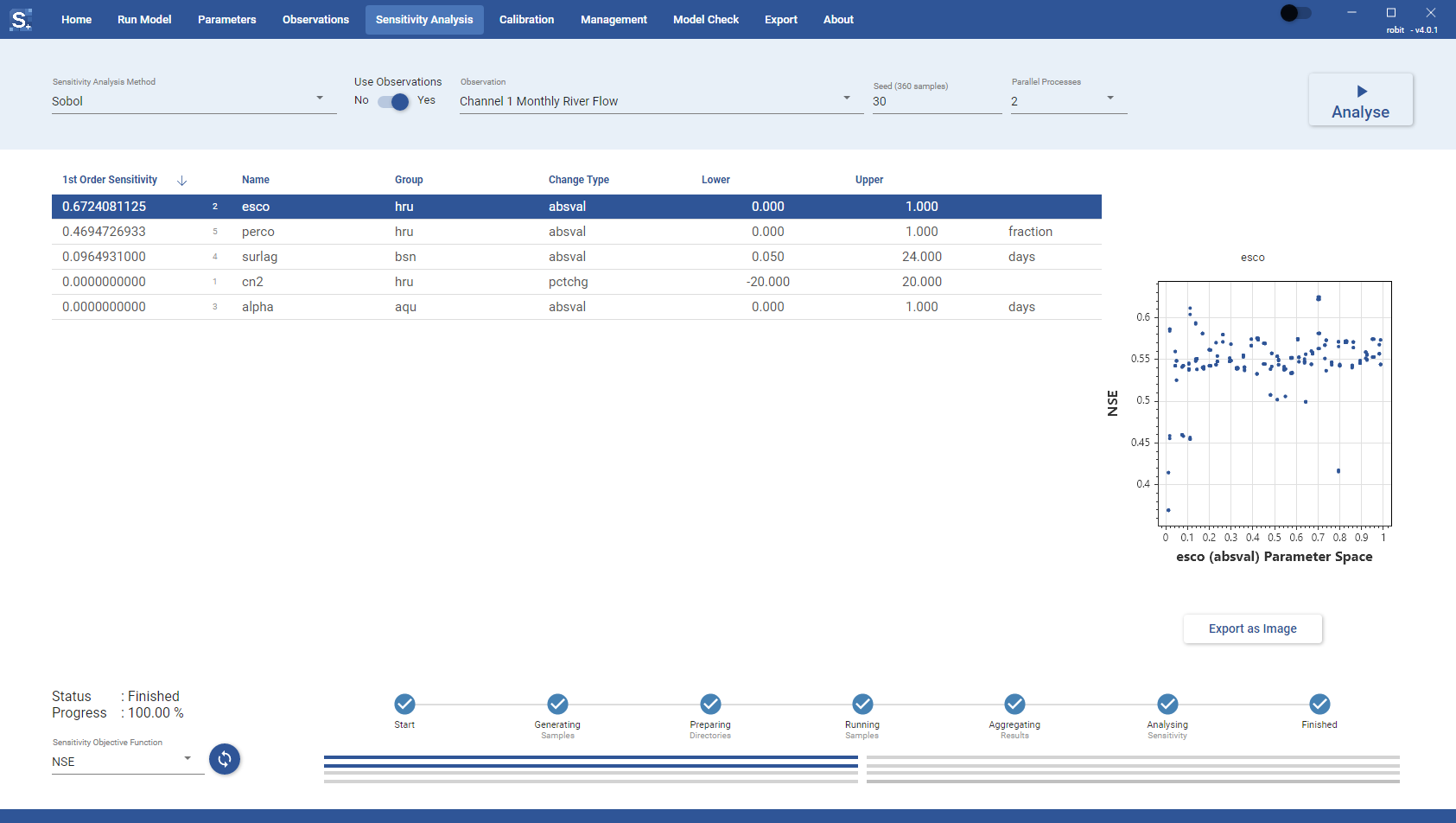
Select a parameter in the table to see its dotty plot next to the table. The plot shows the parameter value against the objective function for every finished sample, and it updates as samples finish. Click Export as Image under the plot to save it as a PNG file.
Resuming a run
If you stop a run, or it fails, a Resume button appears under Analyse. Click it to continue from where the run stopped, keeping the samples already finished. Click Analyse instead to start again with a new sample set.
Sensitivity results
When the analysis is finished, the 1st Order Sensitivity column shows the index for each parameter. Click a column header to sort ascending or descending. You may see some small negative numbers, especially with the Sobol method. They are numerical error; treat these parameters as not sensitive.
The indices are calculated for the objective function chosen in Sensitivity Objective Function (NSE, KGE, PBIAS, RMSE, MSE or MARE). To see the results for a different objective function, select it and click the refresh button next to it. The Toolbox reanalyses the samples already run, without running the model again, and the dotty plots switch to the new objective function.