Automatic Calibration
Open Calibration and choose Automatic in the strip at the bottom of the page. The Automatic tab looks like the Manual tab, but the Toolbox searches for the parameter values for you. It runs the model many times, scores each run against your observations, and keeps the best parameter set.
The page uses the parameters and ranges from the Parameters page and the observations from the Observations page. Settings are saved to the project as you change them.
Basic configuration
These settings apply to all algorithms.
Parallel processes
Parallel Processes sets how many model runs go at once. More processes can shorten the calibration, but need more processor cores and memory. One progress bar per process is shown at the bottom of the page.
Observation
Select in Observation the observation to calibrate against. This is the data set you want the model to reproduce.
Multi-site calibration
Tick Multi-Site Calibration to calibrate against all observations at once. The score of each run is then the average of the objective function over the observations, with every observation weighted equally. A Weight column appears in the performance table and shows 1.00 for each observation. In 4.0.1 the weights cannot be edited.
Observations with no simulated output, or with a metric that cannot be calculated, are left out of the average.
Objective function
Select in Obj. Function the objective function that scores each run:
- NSE (Nash–Sutcliffe Efficiency)
- KGE (Kling–Gupta Efficiency)
- RMSE (Root Mean Squared Error)
- MSE (Mean Squared Error)
- PBIAS (Percent Bias)
- MARE (Mean Absolute Relative Error)
The performance table shows only the selected metric, and its header gives the best value found so far, for example "Best KGE: 0.7213".
Parameter table
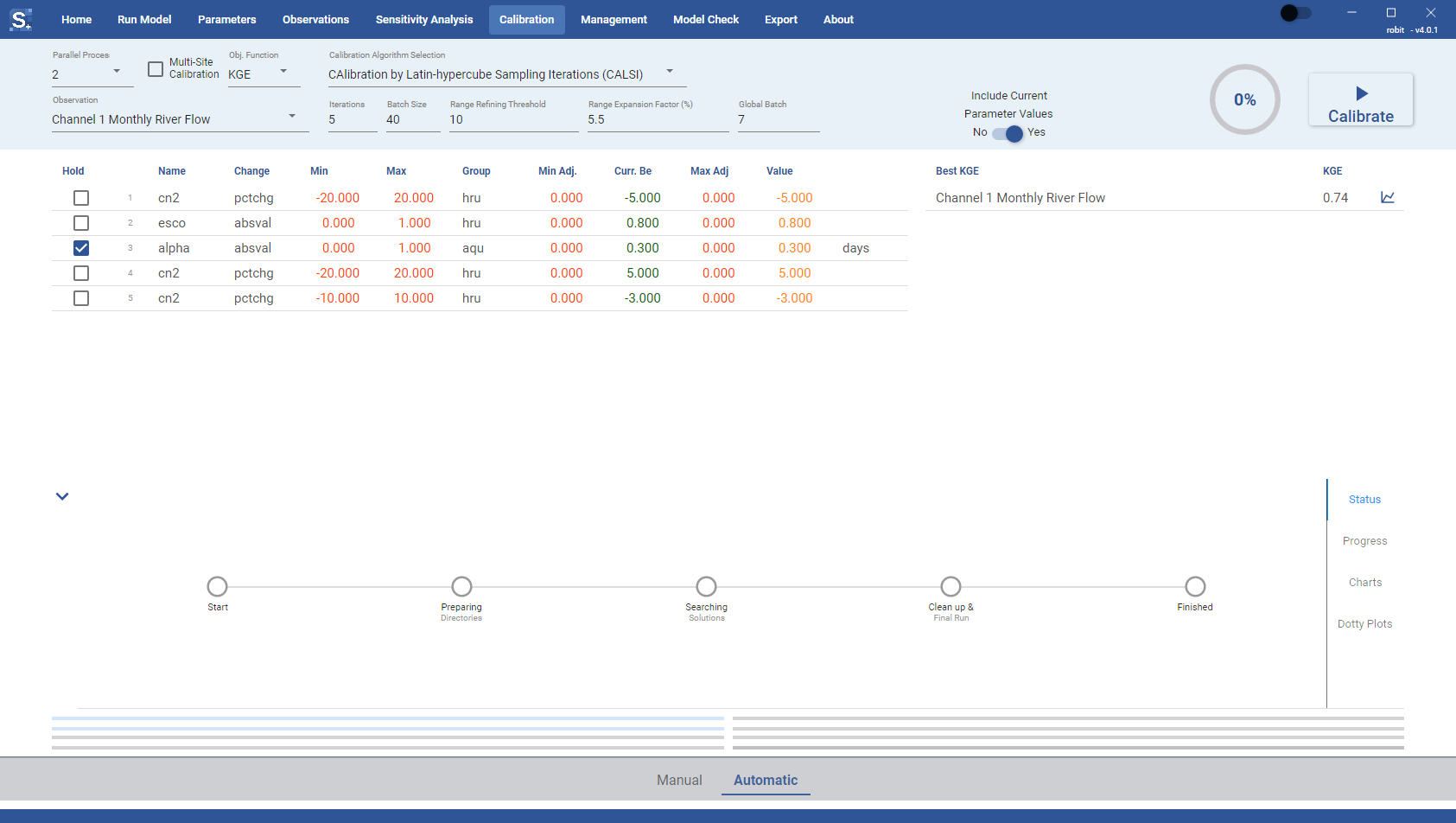
The parameter table lists each parameter with its Min and Max range, the best value found so far (Curr. Best) and the current Value. Ranges are changed on the Parameters page; the table here is read only, apart from the Hold column.
Tick Hold for a parameter to keep it at its current value during calibration. The algorithm then varies only the parameters without a tick. You can use this to fix parameters you have already calibrated and add more parameters for a further calibration. If every parameter has Hold ticked, the Toolbox warns that there is nothing to calibrate and does not start.
When CALSI is selected, the table also shows Min Adj. and Max Adj., the ranges CALSI has narrowed or widened during the search. On a window at the default size or smaller, these replace the Min and Max columns.
Algorithms
Choose an algorithm in Calibration Algorithm Selection. Its settings appear in the tab below the list.
Each algorithm has an Include Current Parameter Values switch. When it is set to Yes, the current parameter values are used as one of the starting points of the search. This is useful when you want to fine-tune around a known good parameter set.
CALSI algorithm
CAlibration by Latin-hypercube Sampling Iterations (CALSI) samples the parameter ranges in batches and adjusts the ranges between iterations. Further details on the CALSI algorithm will follow (a paper is in progress).
The settings and the values a new project starts with are:
| Setting | Default |
|---|---|
| Iterations | 5 |
| Batch Size | 40 |
| Range Refining Threshold | 10 |
| Range Expansion Factor (%) | 5.5 |
| Global Batch | 7 |
| Include Current Parameter Values | Yes |
DREAM algorithm
The DiffeRential Evolution Adaptive Metropolis (DREAM) algorithm is a Markov Chain Monte Carlo (MCMC) method designed to explore a high-dimensional parameter space. It uses multiple chains and adapts the proposal distribution based on the sampling history, which helps it converge on good parameter sets. For a full explanation, see Vrugt et al. (2009).
The settings and the values a new project starts with are:
| Setting | Default | Meaning |
|---|---|---|
| Max Repetitions | 50 | the number of generations (chain iterations) |
| Chains | 5 | the number of chains in the ensemble, at least 3 |
| CR | 0.9 | the crossover probability per dimension, between 0 and 1 |
| ϵ | 1E-05 | the standard deviation of the additive randomization |
| γ | 0.1 | the range of the multiplicative randomization |
| δmax | 3 | the maximum number of chain pairs used per proposal |
| Conv limit | 1.2 | the Gelman-Rubin R-hat threshold for convergence |
| Extra runs | 10 | the number of extra generations after convergence is reached |
| Include Current Parameter Values | Yes |
The number of chains does not depend on the number of processes. At most as many chains as processes are evaluated at once, each in a separate working copy.
DDS algorithm
The Dynamically Dimensioned Search (DDS) algorithm searches the parameter space globally at first and then narrows its search, changing fewer parameters at a time as the calibration progresses. This lets it improve the model's performance in fewer iterations. For more information, see Tolson and Shoemaker (2007).
The settings and the values a new project starts with are:
| Setting | Default |
|---|---|
| Max Iterations | 30 |
| Global Search Batch | 10 |
| Initial Solution Probability | 1 |
| Final Solution Probability | 0.1 |
| Perturbation r | 0.2 |
| Include Current Parameter Values | No |
Perturbation r is the neighbourhood size: each selected parameter moves by N(0, r × range). Tolson and Shoemaker (2007) recommend 0.2.
Running calibration
Click Calibrate to start. The button changes to Stop while the calibration runs, and the ring next to it shows the progress through the iterations. If you stop a calibration, or it fails, a Resume button appears under Calibrate. Click it to continue from where the run stopped.
When the calibration finishes, the Toolbox runs the model once more with the best parameters, then refreshes the parameter table, the performance table and the charts.
Monitoring progress
The details panel below the tables has four tabs. Use the arrow at the left of the panel to show or hide it.
Status
Shows the steps of the calibration for the selected algorithm and marks the current step:
- CALSI: Start, Preparing Directories, Searching Solutions, Clean up & Final Run, Finished.
- DREAM: Start, Preparing Directories, Chain Starting Points, Searching Solutions, Cleaning Up, Final Run, Finished.
- DDS: Start, Preparing Directories, Running Initial Samples, Searching Solutions, Cleaning Up, Final Run, Finished.
Progress
Plots the objective function value of every run against the sample number, one faint line per parallel process, and a thicker line for the best value found so far.
Charts
Shows the observed and simulated data for the best parameter set as the calibration proceeds. The charts cover the simulation period after the warm-up years. The Graph, FDC/LDC, Full/Month and Normal/Log controls work as on the Manual Calibration page. Click the chart button in a row of the performance table to show that observation.
Dotty plots
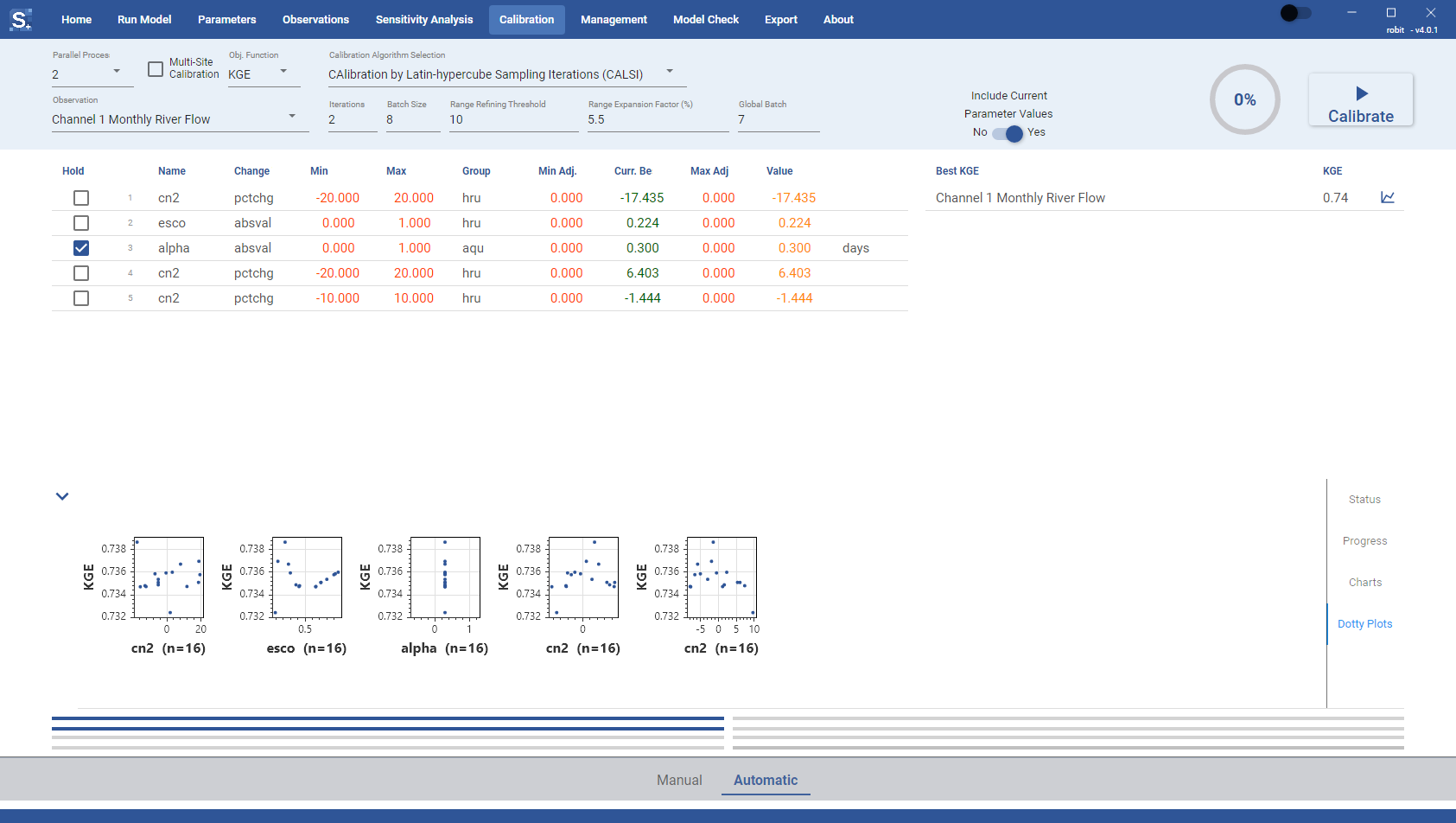
Shows one dotty plot per parameter: the parameter value against the objective function for every run. The axis label gives the number of points. The plots update while the calibration runs and show which parameters change the model's performance the most.