Configuring Management
The Management section is where you edit the land use management of the current project: plant communities, management schedules and their decision tables, land use change tables, and reservoir release rules. Open it with Management in the navigation bar, then use the strip at the bottom of the page to switch between its tabs:
- Plant Communities: the plants each land use starts the simulation with (this page).
- Land Management: which management schedule each land use follows (this page), the operations in each schedule (Operation Schedules) and the decision tables attached to it (Decision Tables).
- Landuse Change: decision tables that change the land use or conservation practice of HRUs during a run (Landuse Change).
- Reservoirs: reservoir properties and release decision tables (Reservoirs).
- Water Allocation: not available in 4.0.1 (Water Allocation).
The section opens on the Land Management tab. All changes go to the model input files of the project's current scenario.
Saving changes
Some edits are written to the input files as soon as you make them. Others stay in the Toolbox until you click the write button of that tab, the large icon at the right end of the top bar.
| Tab | Written at once | Written by the write button |
|---|---|---|
| Plant Communities | Adding, updating or removing a plant | A new plant community with no plants yet |
| Land Management | Assigning a schedule to a land use, creating a schedule, every decision table edit, deleting or purging | Operations added, edited or removed, and decision tables attached to or removed from a schedule |
| Landuse Change | Everything | (no write button) |
| Reservoirs | Every decision table edit | Reservoir properties |
Warning
In the Land Management tab, selecting another land use reloads its schedule from file, so operation and attachment changes you have not written are lost. Click the write button before you select another land use. In the Reservoirs tab, property edits stay in the Toolbox until you click the write button.
Plant Communities
A plant community lists the plants that are present on a land use at the start of the simulation, with their initial state. Land Management uses the community too: when you add a plant, harvest or kill operation to a schedule, the plant list is limited to the members of the land use's plant community.
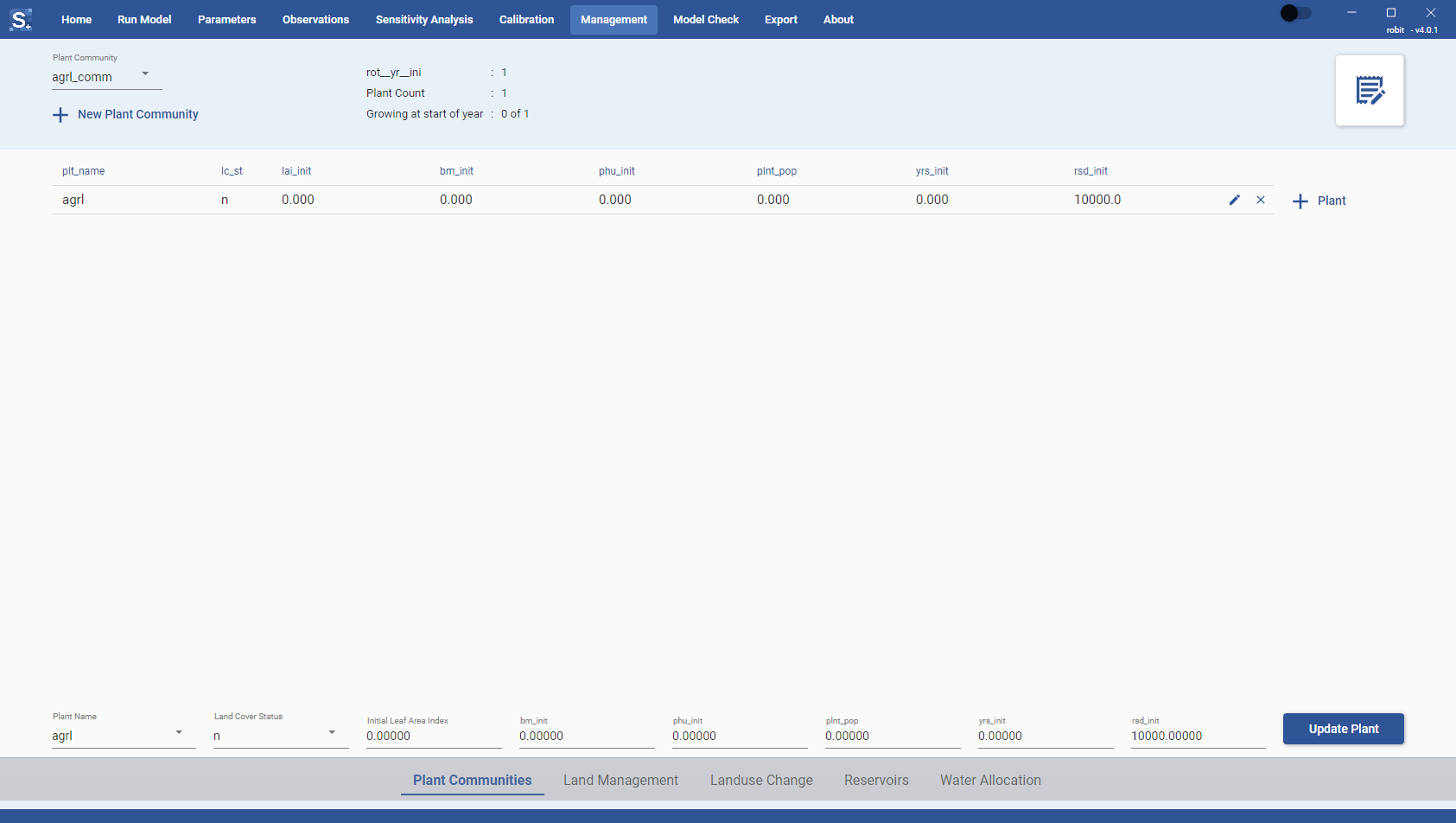
Reviewing a plant community
Select a community in the dropdown at the top left. The top bar shows its rot_yr_ini (the rotation year the community starts in), its Plant Count, and how many plants are Growing at start of year.
The table lists each plant with plt_name, lc_status, lai_init, bm_init, phu_init, plnt_pop, yrs_init and rsd_init. Each row has an edit icon and a remove icon at its right.
Editing or removing a plant
- Click the edit icon on the plant's row. The editor opens below the table.
- Change the fields:
- Plant Name: the plant, chosen from the plants defined in the project.
- Land Cover Status:
yif the plant is growing at the start of the simulation,nif it is not. - Initial Leaf Area Index, bm_init, phu_init, plnt_pop, yrs_init, rsd_init: the initial leaf area index, biomass, accumulated heat units, plant population, age in years and residue.
- Click Update Plant.
The button is enabled only when every number field contains a valid number and the plant is not already in the community. To remove a plant, click the remove icon on its row. Both changes are written to the plant community file at once.
Adding a plant
Click + Plant below the table, fill in the editor as above, and click Add Plant.
Creating a plant community
- Click + New Plant Community.
- Type a name and the rot_yr_ini value (a whole number of 1 or more; the default is 1).
- Click the save icon.
The name must be at least three characters long, start with a letter, contain only letters, digits and underscores, and not match an existing community. The new community is selected and is empty. It is written to file when you add its first plant or click the write button (tooltip "Write All Management Settings"). Click the back arrow to leave without creating it.
Land Management
The Land Management tab connects each land use to a management schedule. A management schedule is a list of dated operations plus any decision tables attached to it.
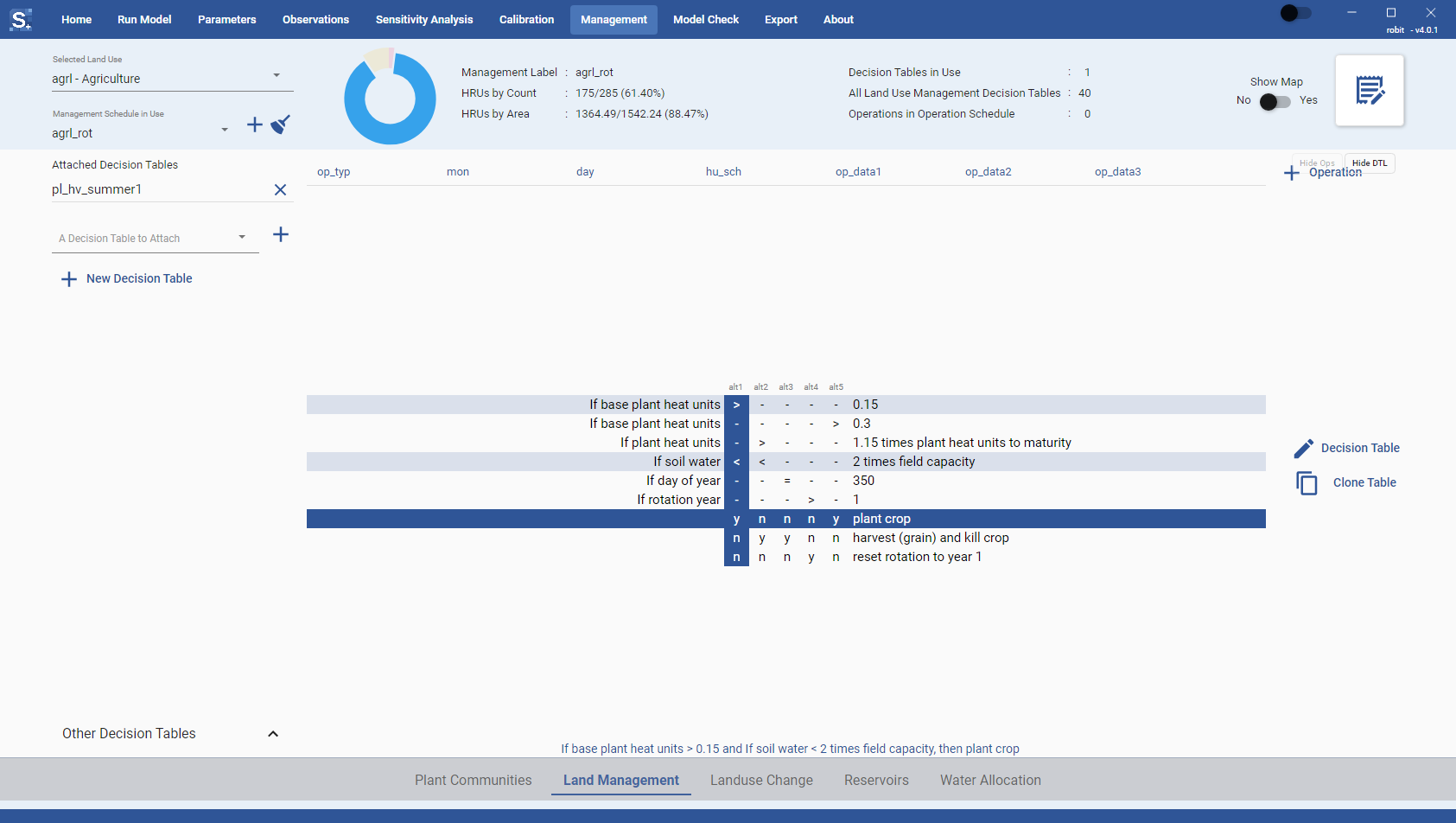
Selecting a land use
Choose a land use in Selected Land Use. The list shows each land use with its category, for example agrl - Agriculture. The doughnut chart next to it shows the share of each land use in the watershed, with the selected one pulled out.
The top bar then shows:
- Management Label: the schedule the land use uses.
- HRUs by Count and HRUs by Area: how many HRUs, and how much area, have this land use, out of the total, with the percentage.
- Decision Tables in Use: the number of decision tables attached to the schedule.
- All Land Use Management Decision Tables: the number of land management decision tables in the project.
- Operations in Operation Schedule: the number of operations in the schedule.
The lower part of the tab shows the schedule's operations, its attached decision tables, and the other decision tables in the project. See Operation Schedules and Decision Tables.
Assigning a schedule to a land use
- Open Management Schedule in Use and pick a schedule. Pick
nullto remove the schedule from the land use. - A dialog asks you to confirm the change. Click Yes.
The assignment is written at once. You cannot assign a schedule to the Unknown (null) land use; the Toolbox shows a message and puts the previous choice back.
Creating a schedule
- Click the + button next to Management Schedule in Use.
- Type a name in Name of the Management Schedule. The naming rule is the same as for plant communities, and the name must not already be used by a land use.
- Click the save icon.
The new schedule is empty. Assign it to a land use, then add operations to it. Click the back arrow to leave without creating it.
Purging unused schedules and decision tables
The broom button next to Management Schedule in Use removes management schedules and land use decision tables that nothing in the project uses. The status line reports how many of each were removed.
Warning
Purging starts as soon as you click the button. There is no confirmation dialog.
Showing the map
Set Show Map to Yes to open a map of the HRUs on the right of the tab, with the HRUs of the selected land use highlighted. The map needs the QSWAT+ shapefiles in gis.data/Watershed/Shapes next to the project file. A project set up from a TxtInOut folder alone has no map, and the Toolbox says so in the map area.
Writing the schedule
Click the write button (tooltip "Write Management") at the right of the top bar to write the operations and attached decision tables of the current schedule to the management schedule file. The status line confirms with "Saved schedule '...'".