Exporting Maps
The GIS Maps tab of the Export section renders a model output variable as a map. You can save it for GIS software as GeoTIFF, GeoPackage or NetCDF, as a styled PNG image with a colour legend for documents, or as an MP4 video that steps through a date range.
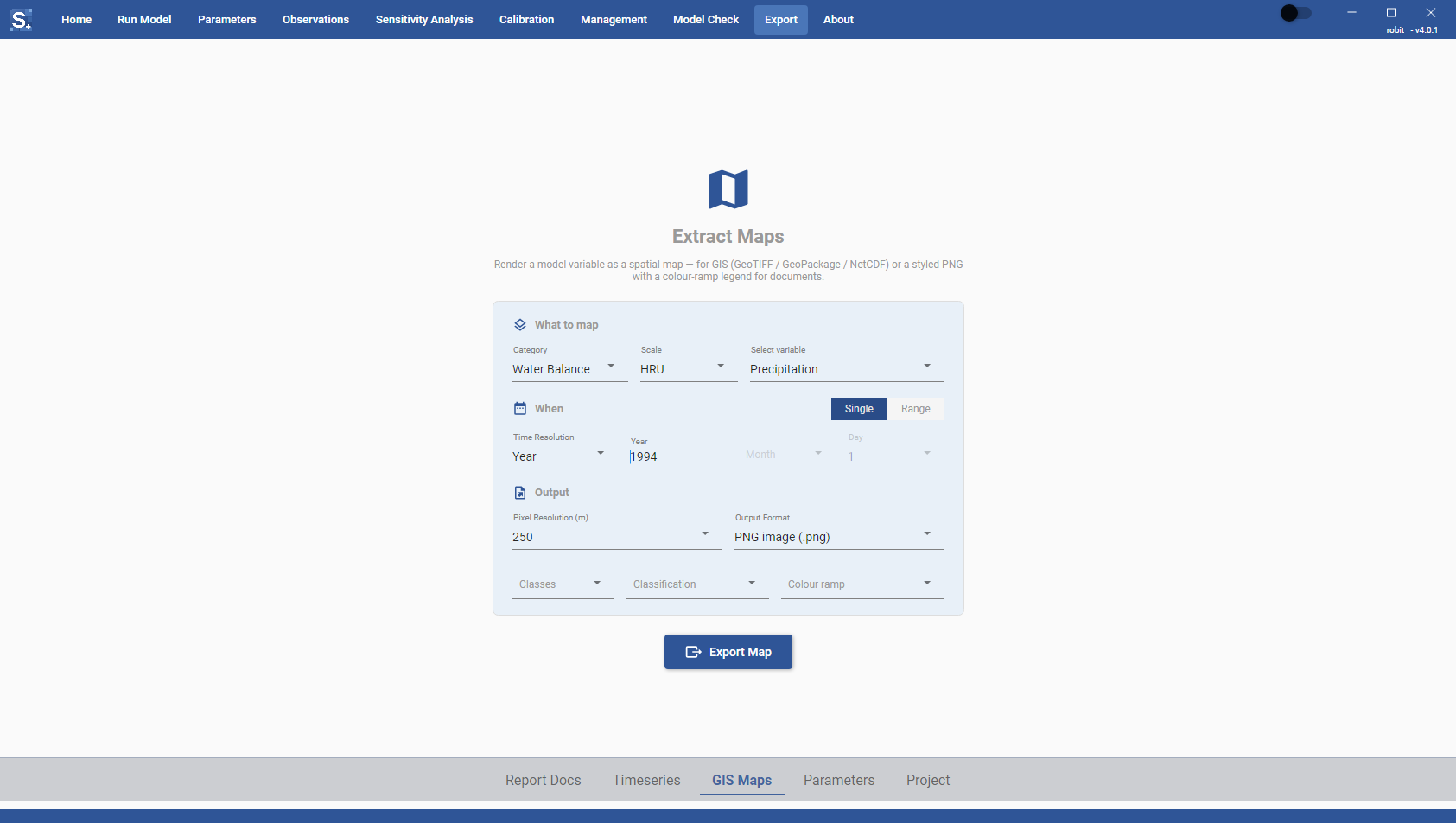
The tab has three groups of settings: What to map, When and Output.
Variable selection
In the What to map group:
| Field | Options |
|---|---|
| Category | Water Balance (default), Nutrients, Plants, Groundwater |
| Scale | HRU or LSU. For Groundwater the scale is fixed by the model, see below. |
| Select variable | The variables of that category, for example Precipitation or Snow Fall under Water Balance, Leaf Area Index or Biomass under Plants |
For the Groundwater category the scale depends on the model:
- a gwflow model maps per-cell variables such as GW Cell Head on the groundwater cells (scale GW cell);
- a model without gwflow maps shallow aquifer variables such as Water Table Depth and Aquifer Storage per aquifer (scale Aquifers).
The Scale box is locked to the one that applies.
The map is made from the output files of the last model run, so the model must have written the matching output (for example the HRU water balance at the time step you pick). Turn outputs on under Print Object in the Run Model section (see Run Settings).
Time period
In the When group, the Single / Range toggle picks one time step or a series.
Time Resolution is Day, Month, Year or Average (the default, the simulation average).
In Single mode, enter the time step:
- Year, for Day, Month and Year;
- Month, for Day and Month;
- Day, for Day. The list has the right number of days for the month and year you entered.
Fields the resolution does not use are greyed out.
In Range mode, enter Range Start and Range End as YYYY, YYYY-MM or YYYY-MM-DD. The Toolbox fills these in when a project opens, from the first year after the warm-up to the last year of the run, because that is the period with printed output. The range produces one map per time step at the chosen resolution. A range at Average resolution gives a single average map.
Output format
In the Output group:
| Field | Options |
|---|---|
| Pixel Resolution (m) | 30, 50, 90, 100, 150, 200 or 250 (default) |
| Output Format | GeoTIFF (.tif) (default), PNG image (.png), MP4 video (.mp4), GeoPackage (.gpkg), NetCDF4 (.nc4) |
GeoTIFF, GeoPackage and NetCDF files contain the raw values. PNG images and MP4 frames are styled, and three more options appear when you pick either of them:
| Field | Options |
|---|---|
| Classes | 3 to 8, default 5 |
| Classification | Quantile (default), Linear (equal), Natural breaks, Log |
| Colour ramp | Automatic (default, chosen per variable), Viridis, Magma, Plasma, Blues, Greens, Reds, Oranges, Yellow-Orange-Red, Yellow-Green-Blue, Red-Yellow-Blue, Spectral, Terrain |
Note
In 4.0.1 these boxes, and Frames / second below, can show empty when they first appear. An empty box uses its default value, so you only need to pick a value to change it.
A PNG has the legend drawn on its right side, headed with the variable name and units. The Toolbox sizes PNG images to between 1600 and 2500 pixels on the long edge, whatever the pixel resolution, so small watersheds stay legible and large ones stay small enough to open.
Files written
Click Export Map. The button is active once a category, scale, variable and time resolution are set, and in Range mode both dates are filled.
| Mode and format | Result |
|---|---|
| Single, any format except MP4 | One file. The suggested name is the variable's SWAT+ output name and the scale, for example precip_HRU. |
| Range, GeoTIFF or PNG | You choose a folder, and the Toolbox writes one file per time step, named like the single file with the date added, for example precip_HRU_<date>. |
| Range, GeoPackage or NetCDF | One file that contains every time step. |
| Range, MP4 | One video, see below. |
For a PNG series the Toolbox computes one classification over the whole range, so every image has the same legend and the colours can be compared from one image to the next. GeoTIFF series contain raw values and need no shared classification. The progress bar counts the maps as they are rendered, and the status line reports how many were saved and how many failed.
Map videos
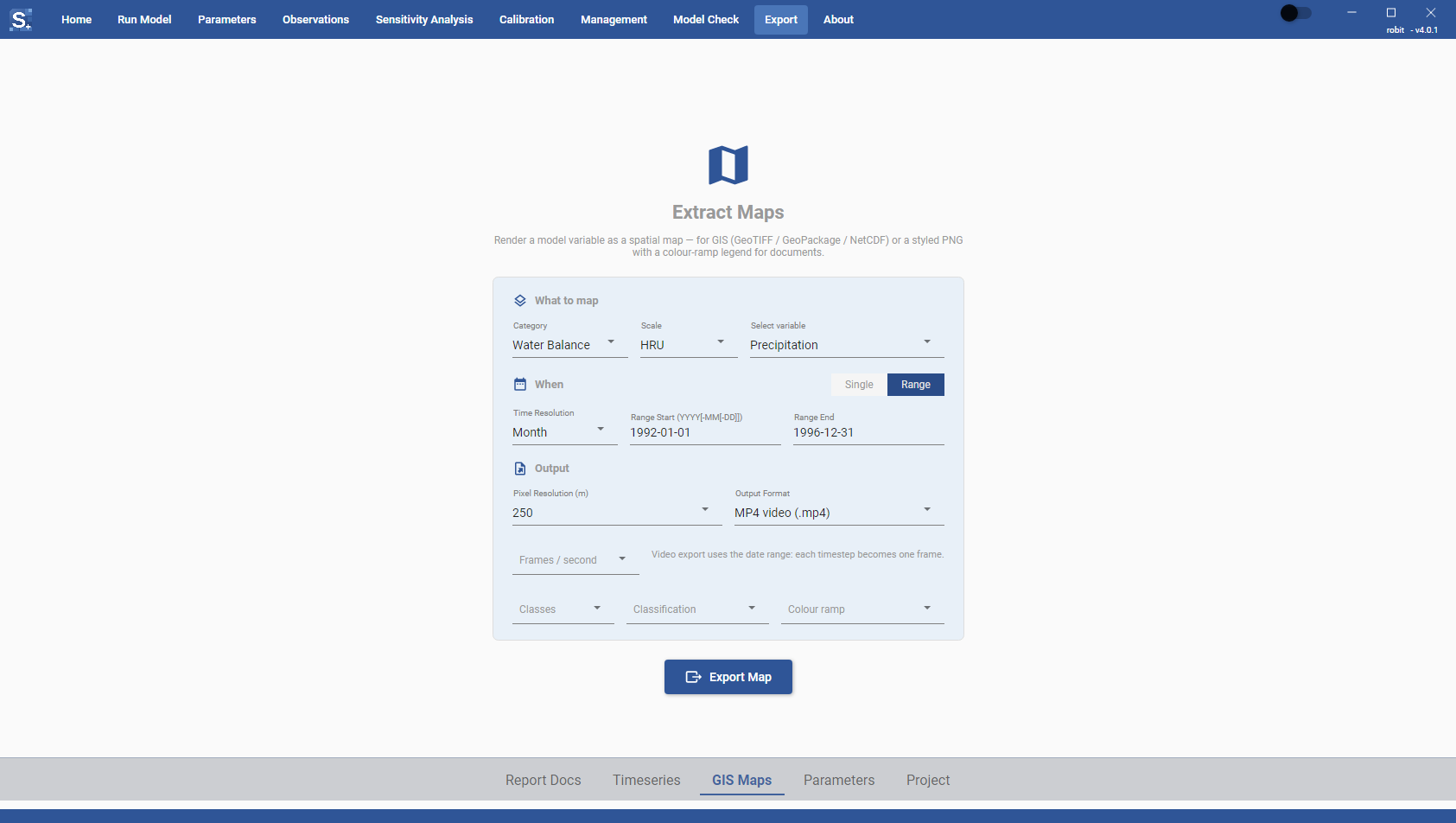
An MP4 video turns each time step in the date range into one frame. Choosing MP4 video (.mp4) switches the toggle to Range, because a video needs a date range. The range defaults to the run period minus the warm-up years.
Frames / second sets the playback speed: 1, 2, 4, 6 (default), 10, 15 or 24.
Every frame contains:
- the map, with one legend shared by all frames;
- a timeline along the bottom with a marker that moves from the start date to the end date, and the date of the frame above the marker;
- a faint SWAT+ Toolbox watermark in the lower right corner.
If a date in the range has no output, its frame is left blank, with the legend and timeline still drawn, so the video keeps one frame per date. The status line reports how many frames were blank. The range needs at least two time steps.
The status line shows the progress: computing the shared legend, rendering each frame, then encoding. Long daily ranges make many frames and take a while to render.