Report Documents
Export section
The Export section takes results and settings out of your SWAT+ Toolbox project. Open it with Export in the navigation bar. A strip along the bottom of the page switches between five tabs:
| Tab | What it writes | Page |
|---|---|---|
| Report Docs | A Word report (.docx) or an Excel workbook (.xlsx) |
this page |
| Timeseries | One simulated variable as a CSV file | Exporting Time Series |
| GIS Maps | Maps as GeoTIFF, PNG, MP4 video, GeoPackage or NetCDF | Exporting Maps |
| Parameters | Calibration parameter values written into a SWAT+ Editor database | Exporting Parameters |
| Project | A portable project archive (.sptp) |
Exporting Projects |
The Report Docs tab opens first. To save a single chart as an image, see Saving graphs.
Note
Exports are blocked while a model run, sensitivity analysis or calibration is in progress. The export buttons look inactive until the run finishes.
Report Docs tab
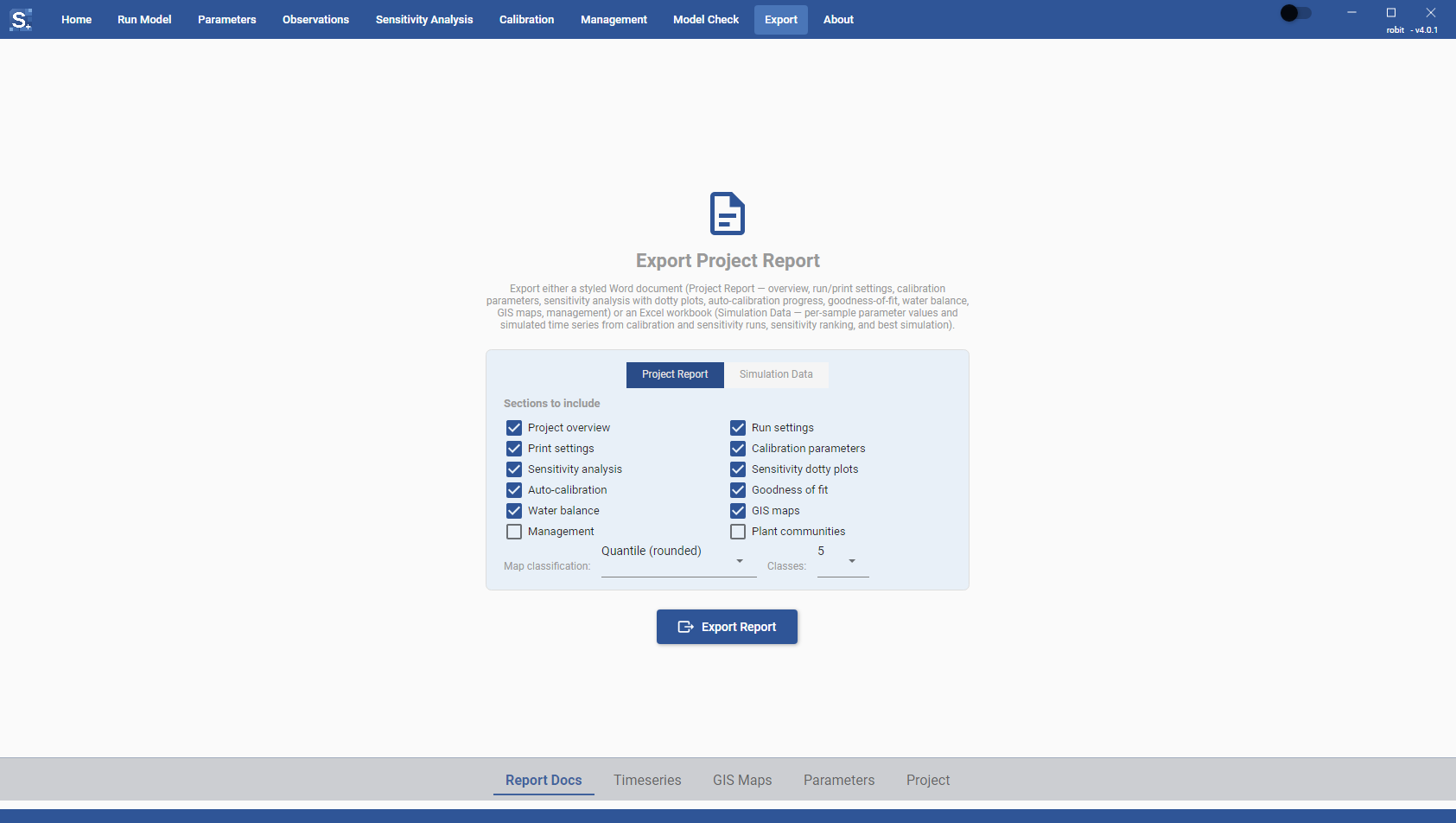
A toggle at the top of the card picks the kind of file:
- Project Report: a styled Word document describing the project and its results.
- Simulation Data: an Excel workbook with the values from calibration and sensitivity runs.
Tick the items you want, then click Export Report. A save dialog opens, and a status line under the button reports progress and the name of the saved file.
Project Report
The report starts with a cover and a table of contents. Word fills in the table of contents when you first open the file, or when you update fields (F9 in Word for Windows).
Under Sections to include, tick the sections to write. Each one becomes a numbered chapter in the report.
| Check box | Default | Contents |
|---|---|---|
| Project overview | on | Project name, scenarios, folders, dates, and the SWAT+ and Toolbox versions |
| Run settings | on | Simulation start and end, warm-up years, time units and sub-daily options |
| Print settings | on | Which outputs the model writes |
| Calibration parameters | on | The parameters in the Parameters section, with their group, change type and value |
| Sensitivity analysis | on | Settings and the parameter sensitivity ranking |
| Sensitivity dotty plots | on | One chart per parameter, parameter value against the objective function. The charts are editable in Word. |
| Auto-calibration | on | Calibration settings and a chart of calibration progress |
| Goodness of fit | on | Each observation evaluated against the current model output. This can take several seconds. |
| Water balance | on | Mean annual water balance components per land use |
| GIS maps | on | Four HRU maps of mean annual precipitation, evapotranspiration, percolation and water yield. This is the slowest section. |
| Management | off | Land uses, management schedules, decision tables and reservoir release rules |
| Plant communities | off | Plant communities, added to the Management chapter |
The water balance section uses the numbers last calculated in the Model Check section. If you have run the model since, open Model Check and refresh it before you export.
When GIS maps is ticked, two more options appear:
- Map classification: Quantile (rounded), Natural breaks (Jenks), Log or Equal interval. The default is Quantile (rounded).
- Classes: the number of colour classes, 4 to 8. The default is 5.
Each map in the report has a legend. On large watersheds the Toolbox renders the maps at a coarser cell size so the images stay small enough to embed; at the size they appear in the document the difference does not show.
The suggested file name is <project name> SWATPlusToolbox Report.docx.
Simulation Data
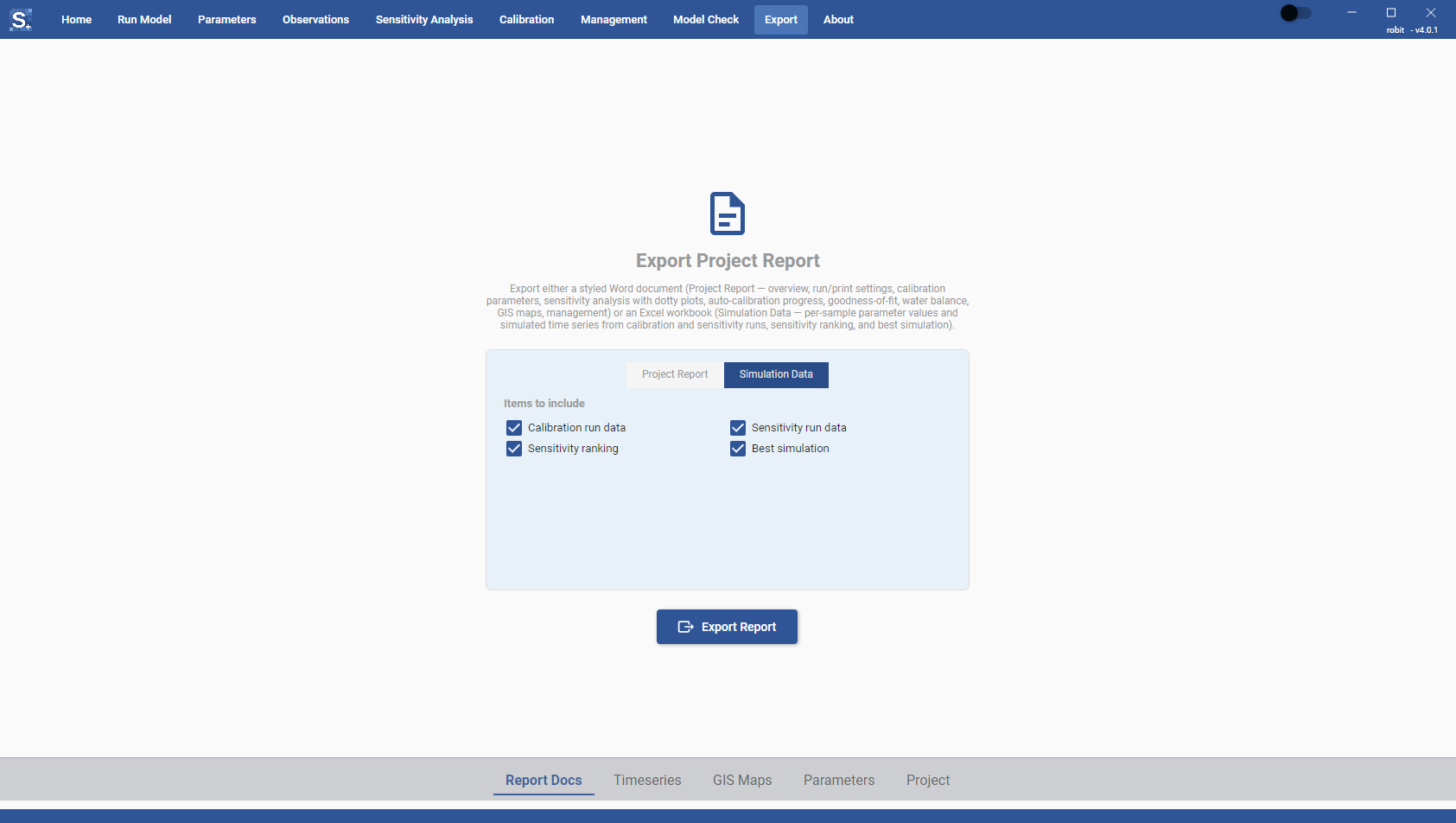
Under Items to include, tick what goes into the workbook. All four are on by default.
| Check box | Sheets written |
|---|---|
| Calibration run data | Parameter values for every sample of the last automatic calibration, and the simulated time series for each observation, with one column per sample |
| Sensitivity run data | The same for the last sensitivity analysis |
| Sensitivity ranking | Parameters sorted by first-order sensitivity, as in the report |
| Best simulation | Observed and best simulated series side by side, one sheet per observation |
The first sheet, Info, lists the project, scenario and the date the workbook was made, then marks each item as Included or Skipped with the reason. An item is skipped when it was not ticked or when the run that produces it has not been done yet. Run the calibration or sensitivity analysis again if its data is missing.
The suggested file name is SWATPlus_SimulationData_<date>_<time>.xlsx.
Saving graphs
There is no separate graph export tab. You save a graph from the page that shows it, or put graphs into a document with the Project Report.
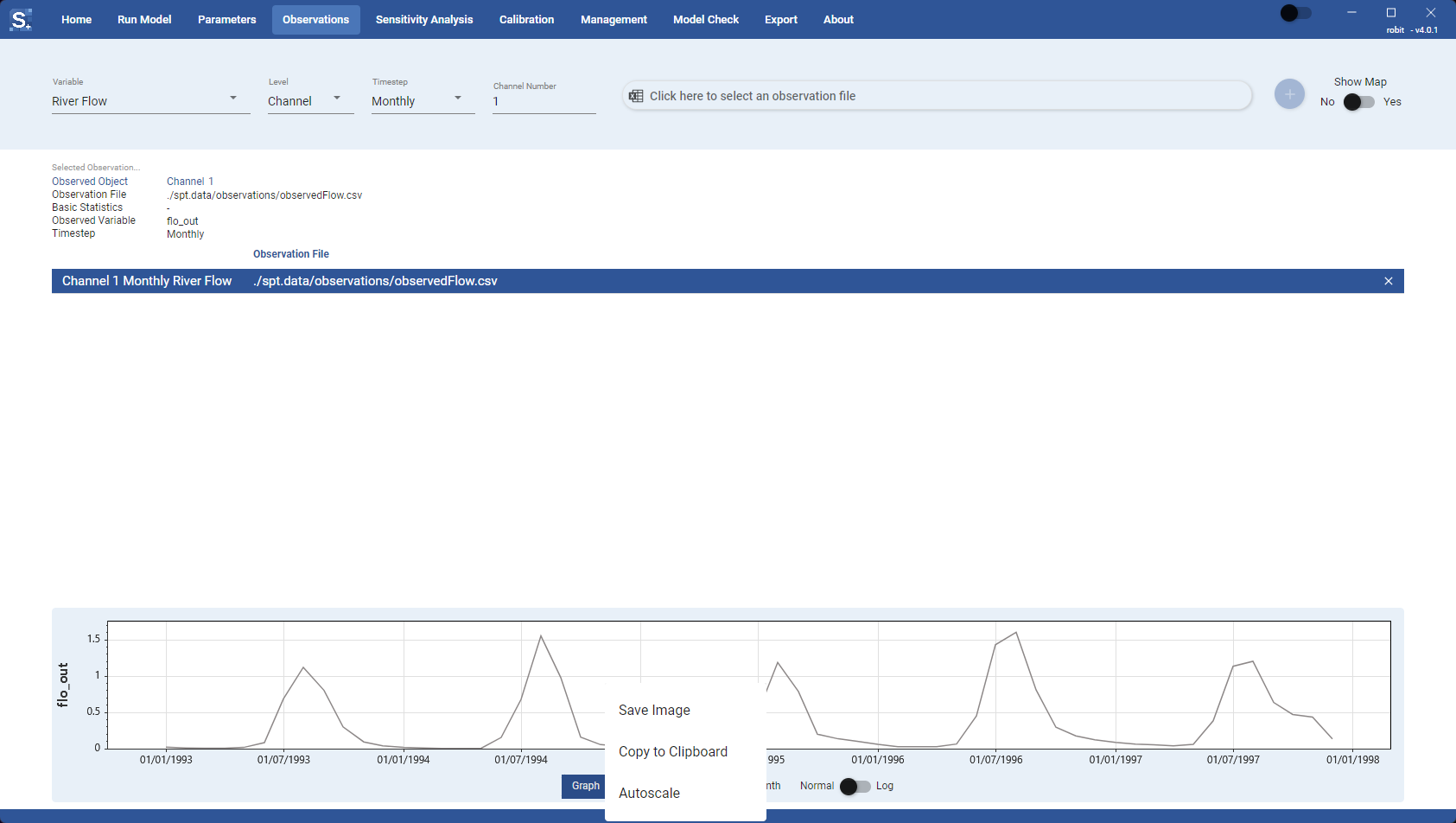
The charts in the Toolbox (observations, sensitivity dotty plots, calibration results and progress, land management and reservoir charts) have a menu that opens when you right-click the chart:
- Save Image saves the chart as PNG, JPEG, BMP, WebP or SVG.
- Copy to Clipboard copies the chart as an image.
- Autoscale fits the axes to the data again.
On the Sensitivity Analysis page, the dotty plot of the selected parameter has an Export as Image button under it. It saves the plot as a 700 x 700 pixel PNG named dotty_plot_<parameter>.png by default.
The Word report includes two kinds of chart, both editable in Word: one sensitivity dotty plot per parameter (the Sensitivity dotty plots section) and the calibration progress chart, the objective function value per iteration (the Auto-calibration section).