Landuse Change
The Landuse Change tab of the Management section manages decision tables that change HRUs during a run: switching an HRU to another land use, or applying a conservation practice. SWAT+ keeps these tables in scen_lu.dtl, and runs the ones listed in scen_dtl.upd. In the Toolbox a table listed in scen_dtl.upd is called active.
These tables are separate from management schedules. You do not attach them to a land use; you activate them, and SWAT+ tests their conditions on the HRUs during the run.
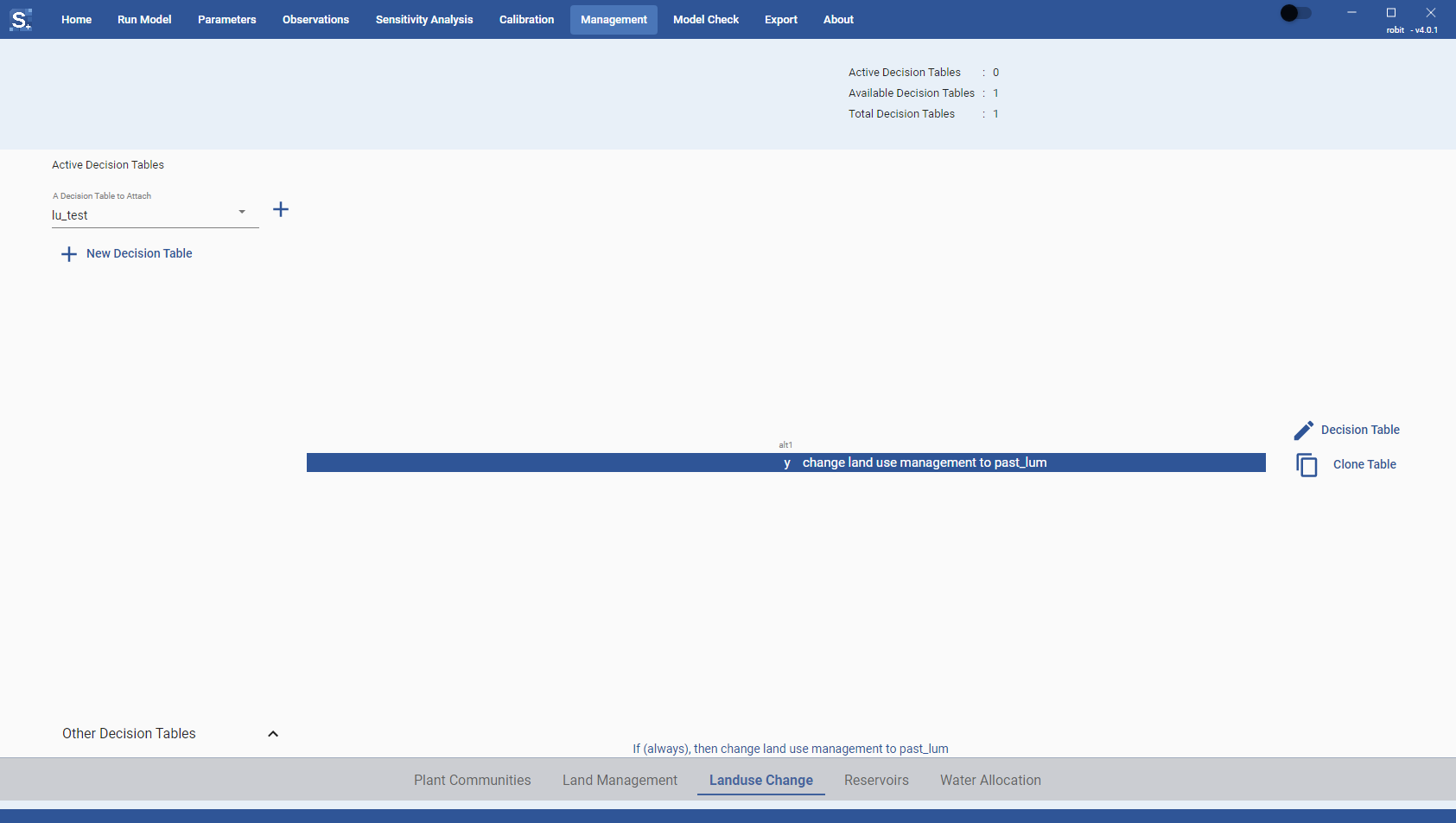
Reviewing land use change tables
Open the Management section and select the Landuse Change tab. The top bar shows:
- Active Decision Tables: tables in
scen_dtl.upd, which SWAT+ will run. - Available Decision Tables: tables in
scen_lu.dtlthat are not active. - Total Decision Tables: both together.
The left panel lists the active tables under Active Decision Tables, and the inactive ones under Other Decision Tables. Click a table in either list to open it in the viewer, then click a cell in an alt column to read that alt as a sentence, of the form "If land use management = (land use) and ..., then change land use management to (land use)".
Activating and deactivating tables
To activate a table:
- Open A Decision Table to Attach in the left panel. It lists the inactive tables.
- Select a table.
- Click the + button next to it (tooltip "Activate (add to scen_dtl.upd)").
A table must have at least one condition before it can be activated. If it has none, clicking + shows "Activate failed: '<name>' has no conditions, so SWAT+ would apply it to every HRU every day. Add at least one condition before activating it." and the table stays inactive.
When the table is activated, it moves to Active Decision Tables. To deactivate a table, click the remove icon next to it under Active Decision Tables. The table stays in scen_lu.dtl and goes back to Other Decision Tables.
Both changes are written to scen_dtl.upd at once. This tab has no write button.
Creating a land use change table
- Click + New Decision Table.
- Type a name in Name of new Decision Table (at least three characters, starting with a letter, letters, digits and underscores only).
- Click the save icon.
The Toolbox creates the table with one lu_change action that applies to the current HRU, and opens it in the editor. The new table is inactive until you activate it.
To finish it:
- Click the edit icon on the
lu_changeaction and pick the land use to change to in File Path. The list shows the land uses of the project. - Click + Condition and choose
land_usein Condition Variable. Pick the land use to change from in Limit Variable, and set the alt comparison to=. - Add a condition for the timing, for example
year_cal(calendar year) with the year in Limit Constant. - Activate the table.
You can also start from an existing table with Clone Table.
Actions for land use change
The action editor in this tab offers only the land use change actions:
| Action Type | What it does |
|---|---|
lu_change |
Changes the HRU to the land use in File Path |
p_factor |
Sets the USLE P factor to Const 1 |
contour |
Applies contouring |
stripcrop |
Applies strip cropping |
terrace |
Applies terracing |
All other editing (conditions, actions, alts, cloning) works as in the Land Management tab, and every change is written to scen_lu.dtl at once. See Decision Tables.
To delete a table from scen_lu.dtl, click the delete icon next to it under Other Decision Tables. Deactivate an active table first. There is no confirmation.
Results of land use changes
After a run with active land use change tables, the Plants and Sediments pages of Model Checks label each HRU with its land uses in order, with the year of each change, for example "Agriculture (agrl), Pasture (past) from 1994".
SWAT+ reads scen_dtl.upd from the TxtInOut folder whenever the file is there, so it needs no entry in file.cio.