Decision Tables
A decision table in SWAT+ is conditional logic: a set of conditions, a set of actions, and alternatives (alts) that say which combination of conditions triggers which actions. The Toolbox has the same decision table viewer and editor in three tabs of the Management section, each working on a different table file:
| Tab | Tables | Used for |
|---|---|---|
| Land Management | Land management tables (lum.dtl) |
Conditional operations attached to a management schedule, such as planting or irrigation |
| Landuse Change | Land use change tables (scen_lu.dtl) |
Changing land use or conservation practice during a run. See Landuse Change |
| Reservoirs | Reservoir release tables (res_rel.dtl) |
Reservoir release rules. See Reservoirs |
The Land Management tab lists only tables that have no lu_change action, and offers only management actions in its action editor. Land use change actions (lu_change, p_factor, contour, stripcrop, terrace) are available in the Landuse Change tab only.
Reviewing decision tables
- Open the Management section and select the Land Management tab (or Landuse Change or Reservoirs).
- In Land Management, select a land use. The tables attached to its schedule are listed under Attached Decision Tables in the left panel, and the first one opens in the viewer.
- Click a table under Attached Decision Tables or Other Decision Tables to view it. Other Decision Tables lists the tables of that tab's kind in the project.
The viewer shows the conditions in the upper rows and the actions in the lower rows, with one column per alt (alt1, alt2, ...). A condition cell shows the comparison for that alt (- means the condition is ignored; otherwise =, >, <, <= or >=). An action cell is y if the action runs for that alt and n if it does not.
Click a cell in an alt column to highlight that alt and read it as a sentence below the table, for example "If base plant heat units > 0.15 and soil water < ..., then plant ...". Until you click one, the viewer shows "Please Click on an alt to view details".
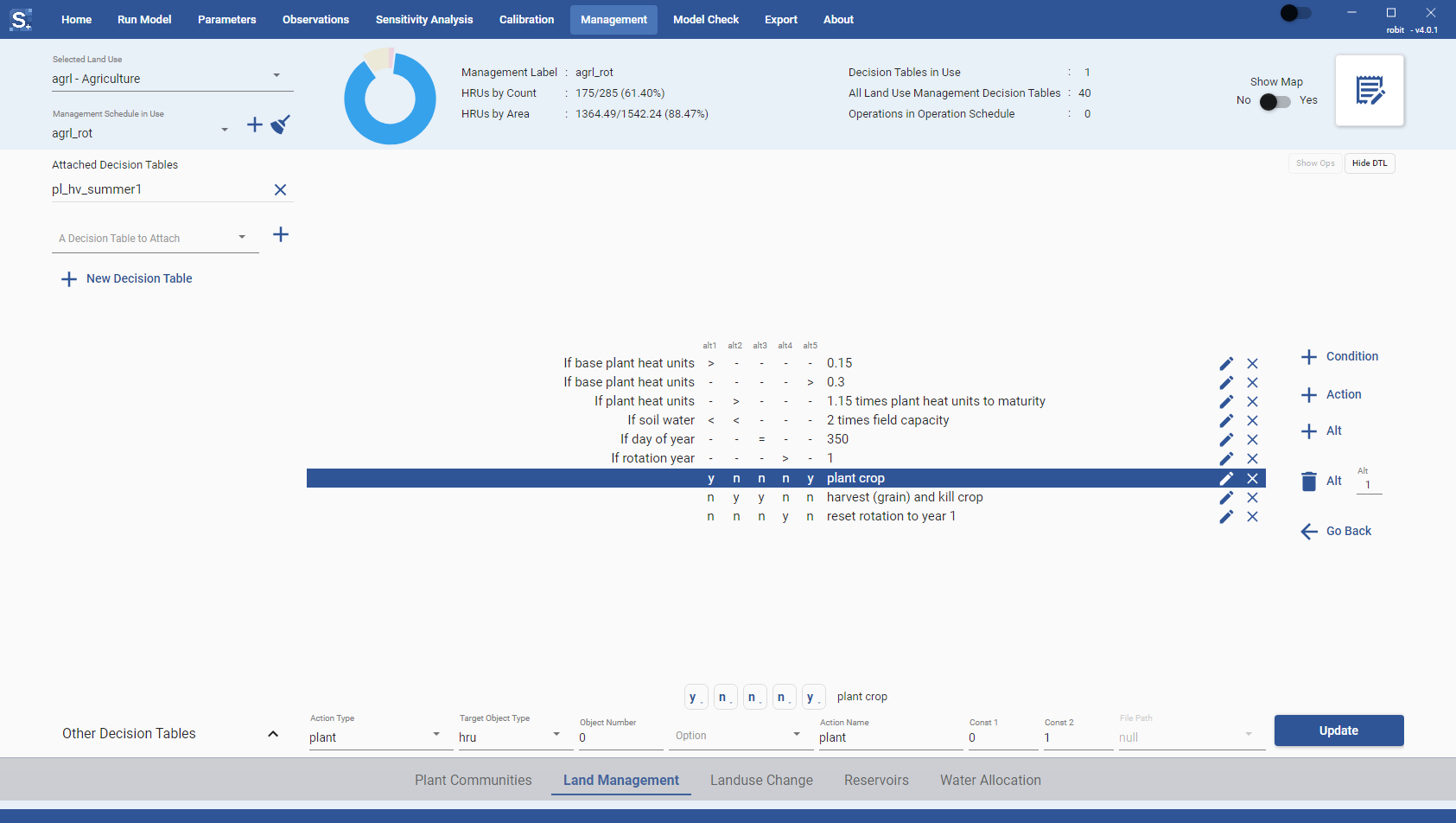
Editing a decision table
Open the table in the viewer, then click the Decision Table button on the right of the viewer (tooltip "Edit the currently displayed decision table"). The editor shows the conditions and the actions in two grids, each row with an edit icon and a delete icon, and a side panel with + Condition, + Action, + Alt, a remove alt button with an Alt number box, and Go Back.
Every change in the editor is written to the table file as soon as you save it: saving a condition or action, deleting one, and adding or removing an alt. Click Go Back to return to the viewer, which reloads the table.
Conditions
Click + Condition to add a condition, or the edit icon on a condition row to change it. The condition editor has these fields:
- Condition Variable: what is tested, for example
soil_water,phu_plant,jday,month,year_rot,proborland_use. - Object and Number: the object the variable belongs to (for example
hru) and its number (0 for the current one). - Limit Variable: what the variable is compared with, for example a soil property, or
nullto compare with the constant. - Limit Operator: how the limit variable and constant are combined.
- Limit Constant: the number in the comparison.
The options in Object, Limit Variable and Limit Operator depend on the condition variable. Below the fields, the editor shows the start and end of the condition as a sentence, with one comparison selector for each alt in between. Pick the comparison for each alt there.
Save (or Update for an existing condition) is enabled once Condition Variable, Object, Limit Variable and Limit Operator have a selection. A new condition is added to the table only when you save it, with - in every alt you did not set.
To remove a condition, click the delete icon on its row.
Actions
Click + Action to add an action, or the edit icon on an action row to change it. The action editor has these fields:
- Action Type: what the action does, for example
plant,harvest_kill,irrigate,fertilize, orreleasefor reservoirs. - Target Object Type and Object Number: the object the action applies to and its number.
- Option: an option for the action type, for example the irrigation method.
- Action Name: a name for the action.
- Const 1 and Const 2: numeric parameters, for example the irrigation depth and the maximum number of repetitions a year.
- File Path: the database entry the action uses, for example a fertilizer or a harvest operation.
The options depend on the action type. As with conditions, the editor shows the action as a sentence with a y/n selector per alt. Save (or Update) is enabled once Action Type and Target Object Type are selected and Action Name follows the naming rule (at least three characters, starting with a letter, letters, digits and underscores only). A new action is added with n in every alt you did not set.
Transplanting in plant actions
For a plant action, File Path names a transplant. It is available only when Const 1 is greater than 0, so a transplant is never picked by accident. Set Const 1 to 1 to choose a transplant; setting it back to 0 resets File Path to null. A table that already names a transplant with Const 1 at 0 (as the SWAT+ Editor writes it) keeps its transplant when you open it.
To remove an action, click the delete icon on its row.
Alts
Click + Alt to add an alt column. The new alt has - for every condition and n for every action, so it does nothing until you set it.
To remove an alt, type its number in the Alt box next to the remove alt button and click the button. In the Reservoirs tab the button removes the last alt, whatever the box says.
Attaching decision tables
In the Land Management tab, a table takes effect when it is attached to a management schedule:
- Open A Decision Table to Attach in the left panel.
- Select a table.
- Click the + button next to it.
To remove an attached table from the schedule, click the remove icon next to its name under Attached Decision Tables. Attaching and removing are written to file when you click the write button of the tab. See Operation Schedules.
In the Landuse Change tab the same panel activates and deactivates tables instead, and the change is written at once. See Landuse Change.
Creating decision tables
- Click + New Decision Table in the left panel.
- Type a name in Name of new Decision Table. It follows the same naming rule as action names and must not match an existing table.
- Click the save icon.
The new table opens in the editor. Add conditions, actions and alts as described above. Click the back arrow to leave without creating a table.
Cloning decision tables
To start from an existing table:
- Open the table in the viewer.
- Click Clone Table.
- Type a name in New Name and click the save icon.
The copy opens in the editor. Use this to make a variant of a table without changing the original, which other schedules may use.
Deleting and purging decision tables
To delete a table from the project, click the delete icon (tooltip "Delete Decision Table") next to it under Other Decision Tables. The table is deleted at once, with no confirmation, and is removed from the current schedule if it was attached.
The broom button in the Land Management top bar purges every management schedule and land use decision table that nothing uses. See Purging unused schedules and decision tables.
Note
In 4.0.1 the delete icon and the purge button in the Reservoirs tab do nothing. See Reservoirs.