Adding Parameter Data
Before you can improve your model performance, you must specify the parameters to be used during sensitivity analysis and calibration. The parameters you add in the Parameters section are used by sensitivity analysis, manual calibration and automatic calibration. They belong to the active scenario (see Scenarios).
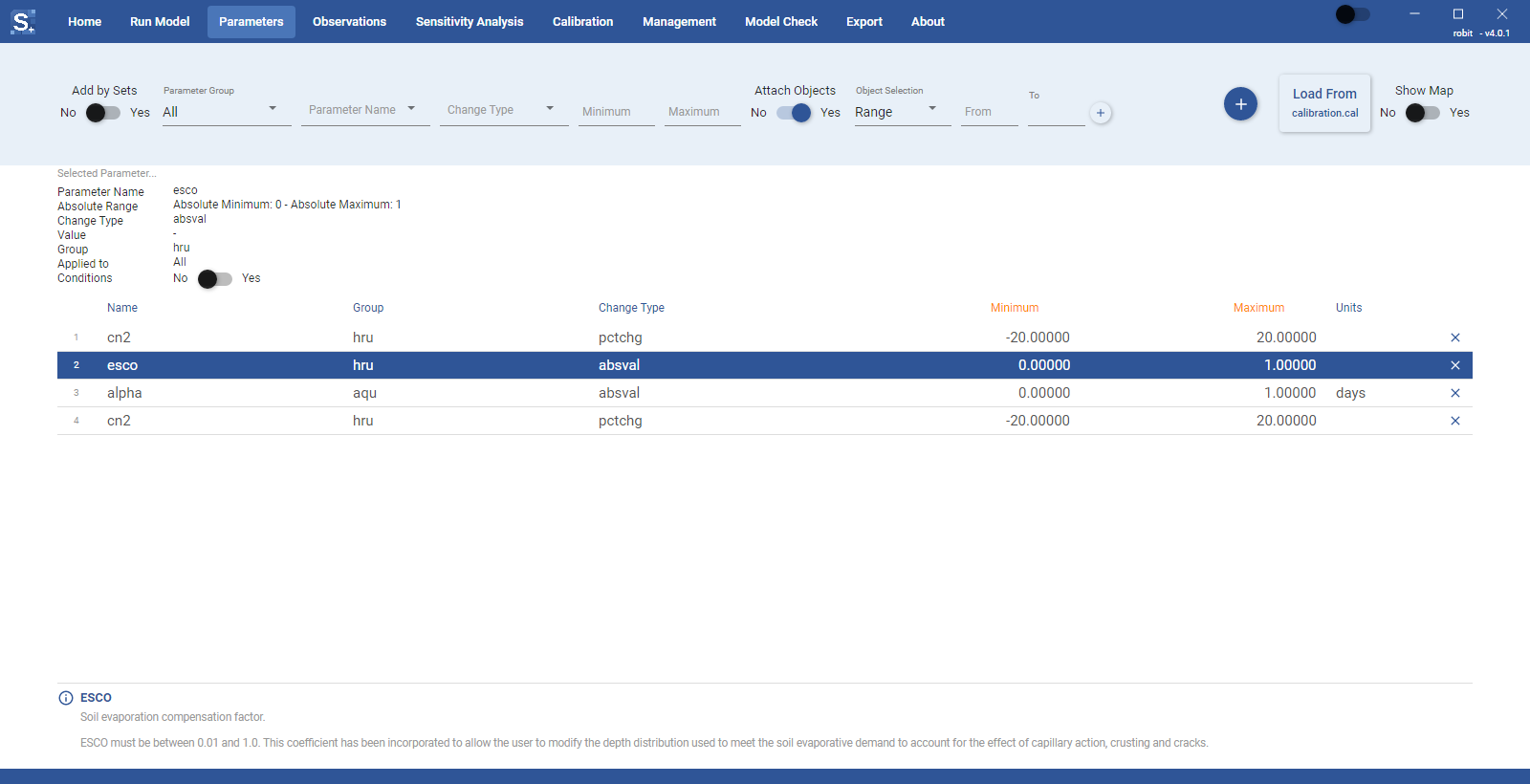
The parameters offered in the interface, with their object type, absolute minimum, absolute maximum and units, come from the cal_parms.cal file in the toolbox installation, at assets/config/status/cal_parms.cal. When you run the model, the toolbox writes the parameter changes to calibration.cal in the scenario's TxtInOut folder.
Adding parameters
You can add parameters one by one or as a predefined set. The Add by Sets switch at the top left chooses between the two.
Adding parameters one by one
With Add by Sets set to No:
- Choose a Parameter Group to filter the list of parameters. All lists every parameter; the other groups are HRUs, Basin, Aquifer, Routing, Soil, Reservoir and SWQ.
- Choose the parameter in Parameter Name. The panel under the parameters table shows a description of the parameter, and the details panel above the table shows its absolute range and object type.
- Choose the Change Type (see Change Types).
- Type the Minimum and Maximum of the range that sensitivity analysis and calibration may use.
- Click the round + button ("Add parameter").
The parameter appears in the table and the count above the table goes up. You can add the same parameter more than once, for example with different objects attached.
Adding parameters by sets
With Add by Sets set to Yes, choose a set in Parameter Set Group. The details panel and the description panel list the parameters in the set with their change type, minimum and maximum. Click + to add all of them at once. The sets that come with the toolbox are:
- Common Used HRU Parameters
- Common Used Soil Parameters
- Common Used Aquifer Parameters
- Common Used River Routing Parameters
Parameters added from a set apply to all objects of their type. To change the sets or add your own, edit parameterGroupSets.csv in the installation, at assets/config/pars/parameterGroupSets.csv. Each row gives the set name, the parameter name, minimum, maximum, absolute minimum, absolute maximum, value, change type, object type and units.
%USERPROFILE%\SWATPlus\SWATPlusToolbox\current\assets\config\pars\parameterGroupSets.csv
An update replaces this folder, so keep a copy of your changes outside the installation folder and add them back after an update.
~/.local/share/SWATPlus/SWATPlusToolbox/assets/config/pars/parameterGroupSets.csv
~/Applications/SWAT+ Toolbox.app/Contents/MacOS/assets/config/pars/parameterGroupSets.csv
An update replaces this file when a new release changes it, so keep a copy of your edits.
Loading parameters from calibration.cal
To reuse parameters from another model, click Load From calibration.cal at the top right and select a calibration.cal file. The parameters in the file replace all the parameters in the active scenario, including any calibrated values. If the scenario already has parameters, the toolbox asks you to confirm first; to keep the current ones, save a parameter set on the Manual tab of the Calibration section before loading.
If some rows could not be imported, a summary lists them: rows whose parameter name is not in cal_parms.cal, and rows with conditions, which the import does not support yet. The file cal_parms.cal itself cannot be loaded this way, since it contains parameter definitions and no values.
Change types
There are three Change Type options.
Percentage
Increases or decreases the current value by a given percent. For example, a change of -10 applied to a curve number of 80 gives 72.
Relative value
Increases or decreases the current value by a given amount. For example, if a relative value of -0.3 is applied to an esco value of 0.95, the new esco value is 0.65.
Replace
The given value takes the place of the old parameter value. Some parameters should not be changed this way if the parameter applies to all objects in the model. For example, if you replace all cn2 values by 30, you lose the spatial variability in curve numbers derived from vegetative cover and give all land uses the same characteristics in generating surface runoff.
The minimum and maximum you enter are in the units of the change type: percent for Percentage, the parameter's units for Relative Value and Replace. For Percentage and Relative Value the minimum is usually negative.
Attaching objects
By default, a parameter applies to all objects of its type in the model: cn2 applies to every HRU and alpha to every aquifer. To apply a parameter only to some objects, set Attach Objects to Yes before you add it, then choose how to select the objects in Object Selection:
- Single: type one object number in Object.
- Range: type the first and last object numbers in From and To. Both ends are included.
- List: type several object numbers separated by commas in CSV, for example
3, 7, 12. - Map: select the objects on the map. Choosing Map turns on the map (see Map Selection).
Click the small button next to the boxes ("Attach selected objects to parameter") to attach what you entered. You can attach several entries, and mix single numbers and ranges; Applied to in the details panel shows everything attached so far. Then click + to add the parameter.
Note
If you click + without attaching anything, the toolbox uses what is in the boxes or selected on the map at that moment. If nothing is entered, the parameter applies to all objects.
Map selection
The map is available when the project folder contains the watershed shapefiles from QSWAT+ (gis.data/Watershed/Shapes). A project made from a TxtInOut folder alone has no map, and Show Map switches itself off again.
Set Show Map to Yes, or choose Map in Object Selection. The map opens to the right of the table; the Group and Units columns are hidden while it is open. The strip above the map switches between layers:
- LSUs: landscape units. Selecting an LSU attaches the HRUs inside it, and Applied to shows the HRU numbers.
- Aquifers: the aquifers. In a project that uses gwflow, this layer is named GW cells and shows the groundwater flow cells.
- Rivers: the channels.
- HRUs: the HRUs. This layer is shown only when the project has an HRU shapefile with no more than 20,000 polygons, because larger ones are slow to draw and select. The limit is set in
assets/config/map-limits.csvin the installation (hru_max_polygons; use 0 for no limit) and takes effect after a restart.
To select objects:
- Click an object to select it, and click it again to deselect it.
- Hold Ctrl and drag to select all objects in a rectangle.
- Double-click empty space to clear the selection.
- Right-click, or triple-click, to zoom back out to the whole layer.
The selected object numbers are listed under the map.
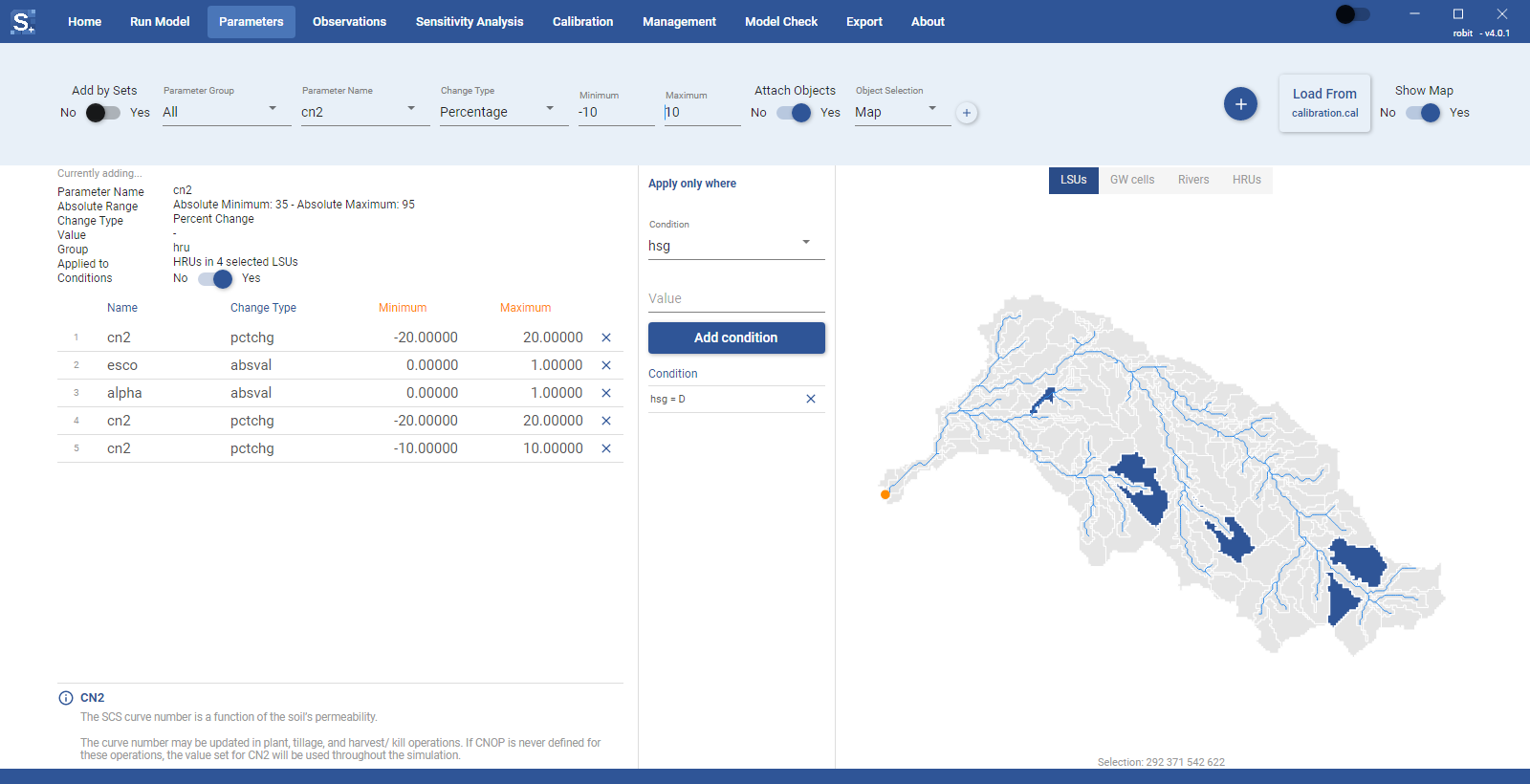
If the toolbox cannot match the selected LSUs to HRUs, it does not add the parameter and tells you why. Adding it without objects would apply it to every HRU in the model. Open the HRUs layer once and try again, or type the HRU numbers instead.
Conditions
A condition limits a parameter change to objects that match a property, for example only HRUs on soils of hydrologic soil group A. SWAT+ applies the change only where every condition matches.
Conditions are set on a parameter that is already in the table:
- Click the parameter in the table. If its object type supports conditions, the details panel shows a Conditions row with a No/Yes switch.
- Set it to Yes. An Apply only where column opens next to the table.
- Choose the property in Condition, then type or pick a value. The value list offers the values found in the active scenario's input files.
- Click Add condition.
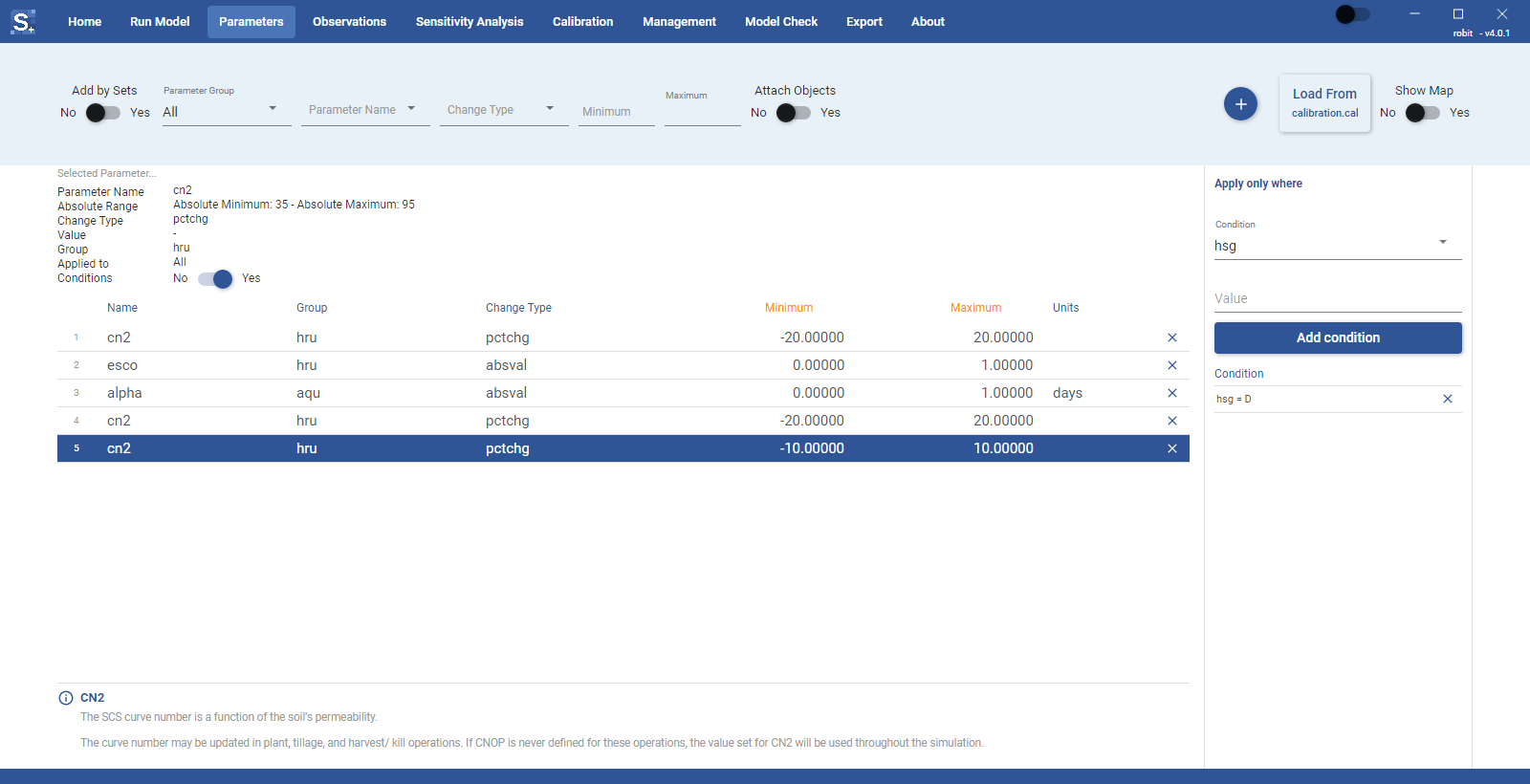
The properties SWAT+ evaluates are hsg and texture (from the soil), plant, pl_class, landuse and cal_group (from the HRU), and res_typ and res_pvol (for reservoirs). The Condition list only offers the ones that apply to the parameter's object type. Parameters for aquifers, routing units, basin, channel water quality and some other object types support no conditions, and the Conditions row is not shown for them. res_pvol takes a number; the others take text.
You can add one condition per property. To remove a condition, click the x next to it. Conditions are saved as soon as you add or remove them.
Setting Conditions back to No stops the conditions from applying without deleting them; the details panel shows how many are kept, and setting it to Yes again restores them.
Reviewing added parameters
Click a parameter in the table to see its details: change type, group, absolute range, the objects it applies to, and its conditions. The panel under the table shows its description.
To change the range of a parameter, double-click its Minimum or Maximum cell (their headers are orange), type the new value and press Enter. To remove a parameter, click the x at the end of its row.
While a model run, sensitivity analysis or calibration is in progress, you can view parameters but you cannot add, remove or load parameters, edit ranges or change conditions.